In this article4 sections
Find out what is actually missing
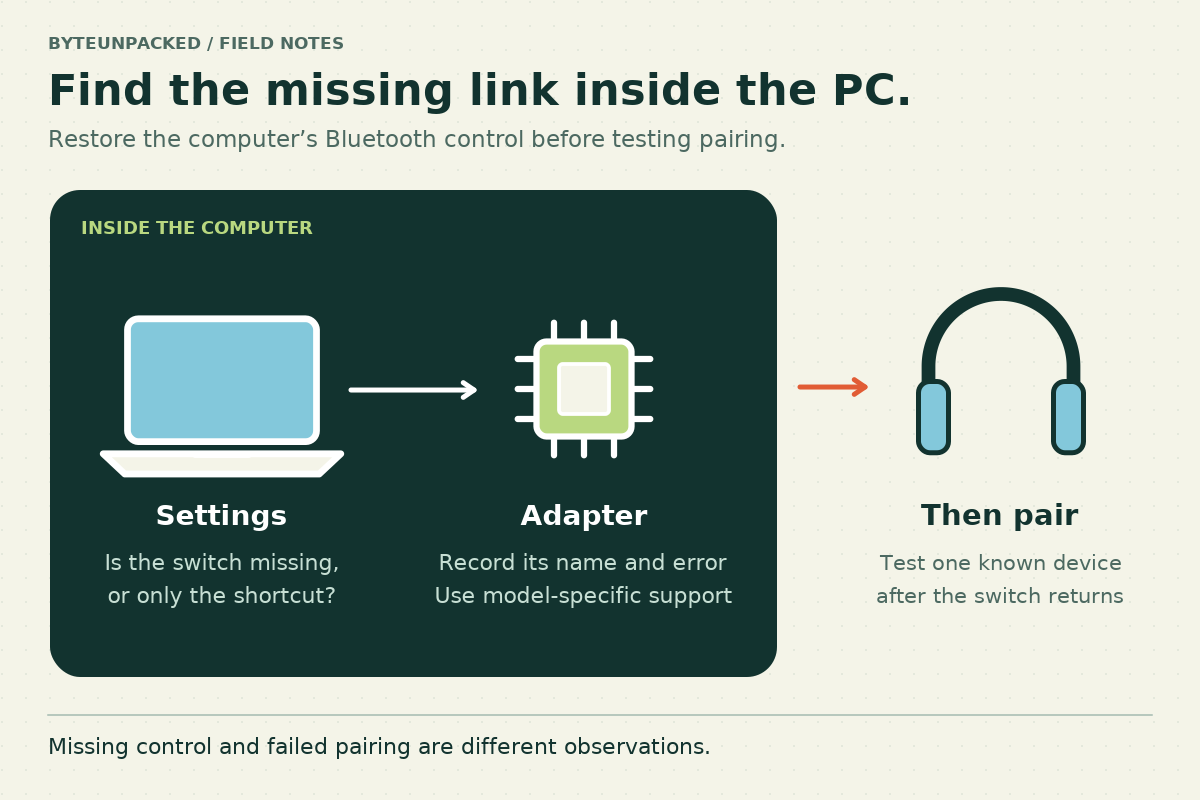
Open Windows 11 Settings and select Bluetooth & devices. Look for the Bluetooth switch there, even if you cannot find its tile in Quick settings. Microsoft documents both places separately. A missing shortcut is a different observation from an absent switch throughout Settings. Write down which one you see before changing drivers or repeatedly trying to pair an accessory.
Microsoft notes that a missing Bluetooth setting can mean the computer has no Bluetooth adapter or that its driver is not installed. For a newly acquired desktop, check the exact model's specifications rather than assuming that Wi-Fi also guarantees Bluetooth. If this computer used Bluetooth yesterday, record that fact: it points the investigation toward a change or failure instead of missing original capability.
Our suggested starting note is simple: PC model, Windows version, whether Bluetooth worked previously, and whether Settings still shows a switch. Include any recent update or hardware change without declaring it the cause. A problem appearing after an update is useful timing information, but timing alone does not establish which component needs attention.

Try the documented recovery without removing devices
Microsoft's missing-Bluetooth guide describes hardware errors involving manufacturer drivers or firmware. Its Windows 11 recovery steps include a complete shutdown: save your work, hold Shift while choosing Start, Power, Shut down, wait one minute after the PC turns off, then power it on. This is the documented shutdown procedure, not a request to hold the physical power button while work is open.
Check whether Airplane mode is off, then inspect Bluetooth & devices again. Microsoft also provides an automated Bluetooth troubleshooter through the Get Help app. Follow its prompts and note what it reports. If it cannot resolve the issue, keep that result for the next step instead of running the same process repeatedly and assuming that a different outcome will eventually appear.
Avoid removing every paired keyboard, mouse, or headset during this initial investigation. Our reason is diagnostic: the missing control is on the computer, while pairing records describe individual accessories. Changing both at once adds work without showing whether Windows has recovered access to its Bluetooth hardware. Keep a wired input method available if your normal keyboard or mouse depends on Bluetooth.
Identify the adapter and use its proper support channel
Open Device Manager and look for Bluetooth and the adapter's name. Microsoft recommends checking for a driver update from that adapter's context menu. If Windows cannot find a newer driver, its general troubleshooting guide directs you to the PC manufacturer's website. Use the exact computer model and supported Windows version; a similarly named wireless component is not a reliable substitute.
Treat an absent adapter, an adapter with an error, and an adapter that appears normally as separate findings. Record the name and any displayed error before making another change. This gives support something more useful than 'Bluetooth is broken' and helps you compare the state before and after a documented driver installation. An empty category alone does not establish that you need to buy replacement hardware.
Microsoft also discusses manufacturer firmware updates for missing Bluetooth. Those are a later, model-specific step. Read the manufacturer's instructions and prerequisites before proceeding, especially on an encrypted or managed PC. For a work computer, involve IT. Our recommendation is to avoid turning a narrow connectivity problem into an improvised BIOS update based on a download from an unrelated machine.
Related guide: prepare your BitLocker recovery key before deeper PC work.
Confirm the switch returns before testing an accessory
When the Bluetooth switch returns, turn it on and test one known accessory. Keep the test small: one device, close to the computer, with its power and pairing state checked. If the switch now works but the accessory still fails, you have made progress and identified a different problem. Continue with pairing guidance rather than repeating the missing-adapter procedure.
If the switch remains absent, send the PC manufacturer or IT team your model, Windows version, adapter observations, and the steps already tried. Ask for the next model-specific check. A concise record makes escalation more efficient and reduces the chance that another person will ask you to repeat changes whose results you have already established.
- Check Settings as well as Quick settings.
- Record whether this PC previously supported working Bluetooth.
- Use the documented shutdown and Get Help checks before broad changes.
- Match driver or firmware guidance to the exact PC model.
Sources & further reading
This is a source-based guide, prepared with AI assistance and checked against the references above. It is not a hands-on product test. Read our editorial approach.