In this article5 sections
Find the exact moment the sound changes
Start with a repeatable example. Play a familiar audio clip through the headphones, then open the application that normally triggers the poor sound. Note whether the change happens when joining a call, opening a microphone test, or starting voice chat. Our suggested comparison uses the same clip at the same volume so a different recording does not confuse the result.
Then quit the calling application completely and compare again. A mute button may leave the application’s audio session open, so use a full exit for this diagnostic step. Close other applications that might be using the microphone too. The goal is to learn whether playback quality follows microphone use, rather than immediately changing every sound setting.
Record the computer, operating system, headphones, and application involved. Also note which microphone and speaker the application selected. That small inventory is useful because two applications on the same computer can choose different audio devices. A good result in a music player does not establish what happens when another application starts a communications session.

Understand the Classic Bluetooth tradeoff
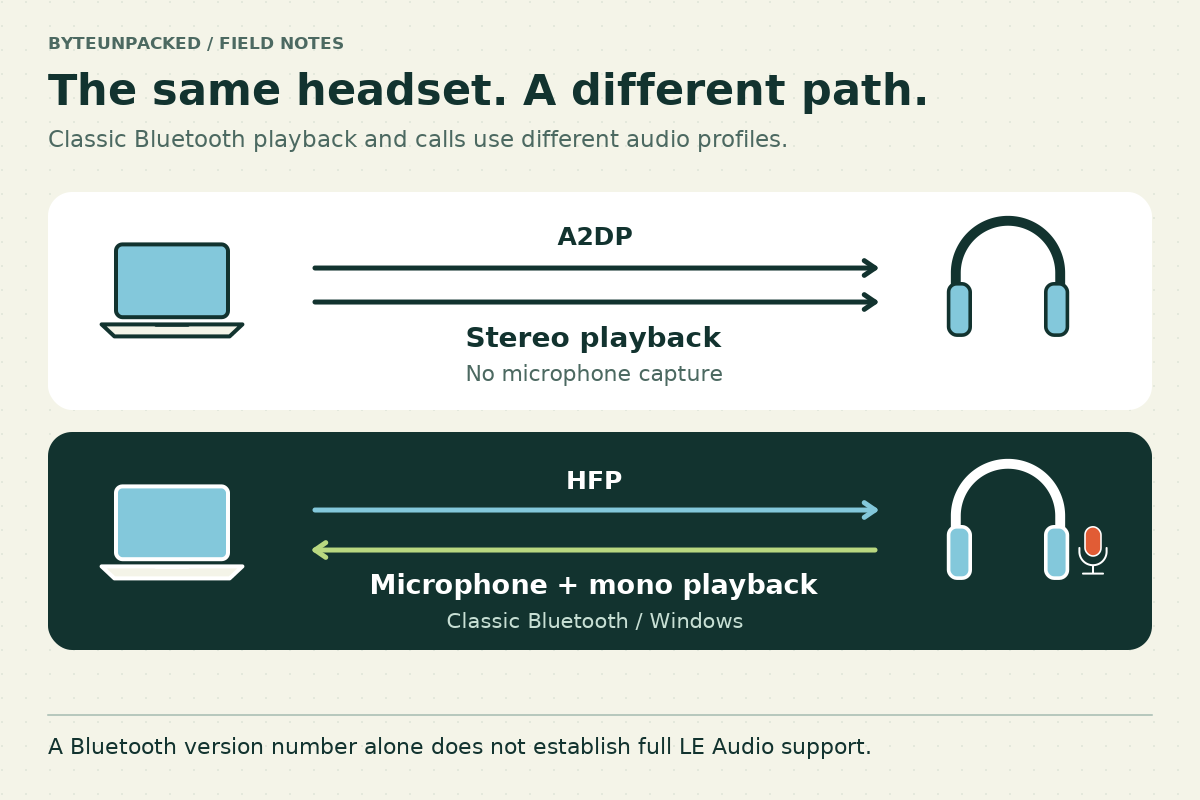
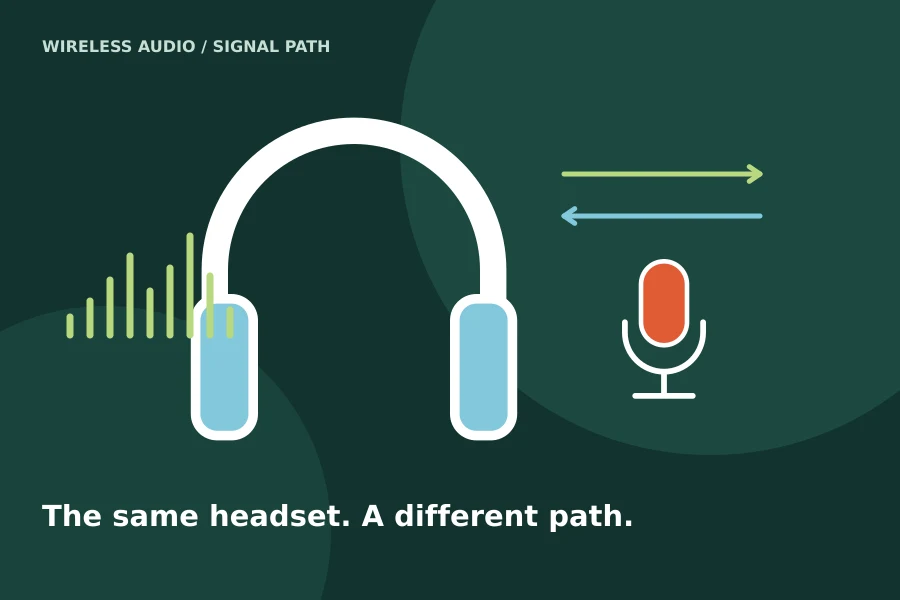
Microsoft documents two relevant Classic Bluetooth audio profiles in Windows. A2DP provides high-quality stereo playback without microphone capture. HFP supports simultaneous microphone capture and mono playback. When the computer needs the headset microphone, it can switch to the profile that supports two-way voice, changing what you hear through the same physical headphones.
On Windows 11, Microsoft says opening the microphone or creating an output stream categorized as communications can trigger HFP. The audio endpoints are unified, so older instructions that insist on finding separate Stereo and Hands-Free device entries may not match your computer. A change in quality is therefore not automatically evidence that the headphones have developed a hardware fault.
Apple similarly explains that using a Bluetooth headset’s microphone can reduce audio quality and volume until microphone use stops. It recommends quitting applications that use the microphone and closing the Sound settings window. That last detail is useful during troubleshooting: leaving a settings panel open to inspect the microphone can keep the condition you are trying to remove.
Choose the input and output separately
If the computer has a built-in microphone or you already have a separate microphone, try selecting that as the calling application’s input while retaining the headphones as output. NVIDIA documents this approach for GeForce NOW and advises restarting the session after changing the microphone selection. Treat it as a controlled test for your application, rather than a promise that every program behaves identically.
Check the application’s own audio preferences as well as the operating system’s selections. Say a short test phrase and confirm that the intended microphone responds; then compare playback. If switching input does not help, the application may still be using a communications audio path. Return to the original settings if the test makes your setup less reliable or the microphone unsuitable for the room.
On a Mac, Apple recommends selecting the internal speakers and then selecting the Bluetooth headphones again if quality remains reduced after microphone use stops. Our suggested sequence is to close the application first, change the output only if needed, and retest once. Repeatedly pairing and unpairing devices before checking the trigger can obscure a simple mode change.
Check whether LE Audio changes the answer
The Classic Bluetooth limitation is not a universal rule for every modern setup. Microsoft documents stereo playback while the microphone is active on supported Windows 11 computers using Bluetooth LE Audio headphones. Support depends on the Windows version and updates, compatible integrated Bluetooth hardware, suitable manufacturer drivers, and an LE Audio headset. A Bluetooth version number alone does not establish that complete combination.
For supported setups, Microsoft describes Format when microphone is active under the output device in Settings, System, Sound. If the option is missing, check the documented requirements and manufacturer drivers. Microsoft also provides a mono setting for compatibility problems.
Use the result to narrow the next step
If the quality drop reliably starts with a call and ends when the application closes, you have evidence that the audio path matters. If poor playback continues with every microphone application closed, investigate that as a broader problem. Our suggested next comparison is another familiar clip and another playback application, changing one condition at a time before considering replacement hardware.
- Compare the same audio before, during, and after microphone use.
- Check the application’s actual input and output selections.
- Try an existing separate microphone as a reversible diagnostic step.
- Verify full LE Audio support before expecting stereo playback during microphone use.
Sources & further reading
This is a source-based guide, prepared with AI assistance and checked against the references above. It is not a hands-on product test. Read our editorial approach.