In this article5 sections

Separate power from the video connection
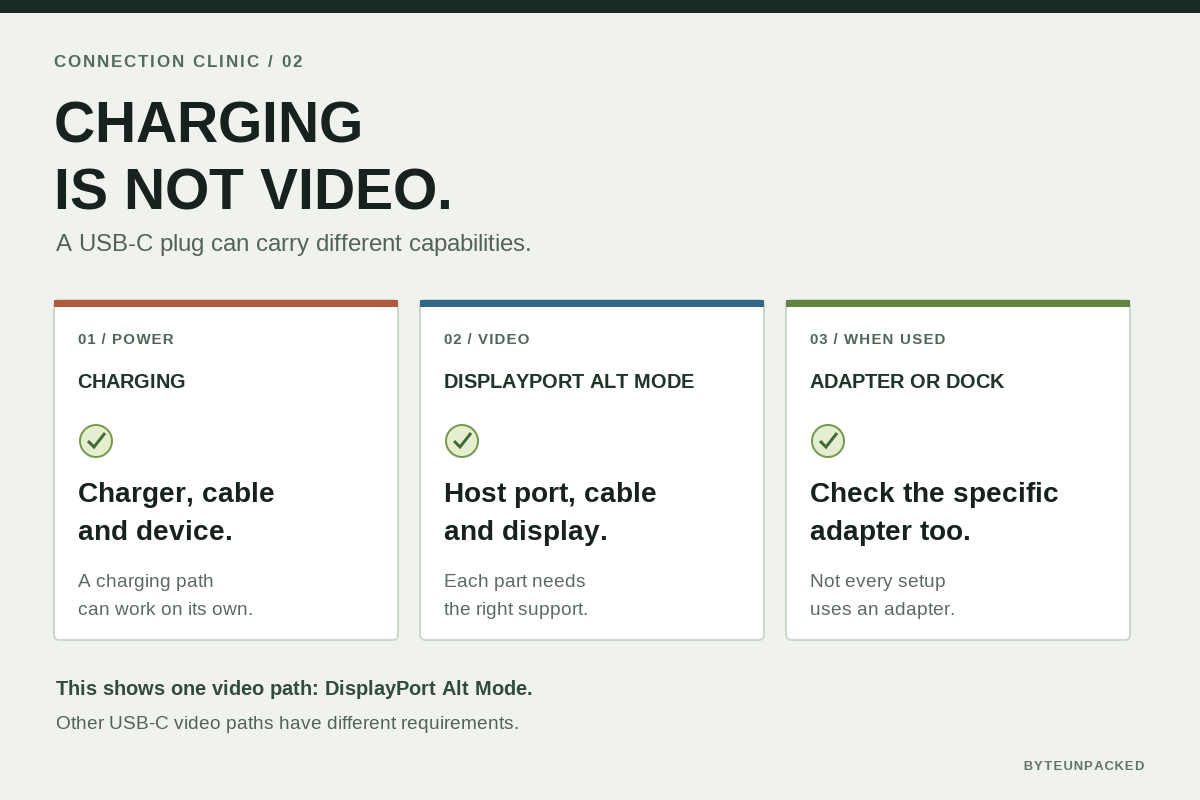
You connect a laptop to a monitor with USB-C. The laptop starts charging, but the screen stays blank. That combination is possible because the reversible connector does not promise that every device, port, and cable supports the same functions. The charging result answers one question about the connection; it does not answer the video question.
Before buying a replacement cable, write down the exact laptop model, the port you used, the monitor model, and any adapter or dock between them. Include the cable's markings or product number. A description such as 'USB-C cable' leaves out the information needed to establish whether this particular chain should carry a picture.
Check the laptop port and the monitor input
For a common direct connection, the laptop sends video using DisplayPort Alt Mode over USB-C. VESA, the organization behind DisplayPort, explains that this mode carries audio and video through the USB-C connection. Its guidance points readers to the device documentation; a DisplayPort logo near the port can also identify support. Look up the exact model rather than inferring capability from the socket's shape.
Check both ends. The laptop needs a compatible output and the monitor needs the corresponding input. A USB-C socket used for another purpose on a display is not automatically its video input. Consult the monitor's port diagram, connect to the specified upstream video port, and select that input in the monitor's menu.
USB4 and Thunderbolt equipment introduce their own compatibility requirements. Microsoft specifically advises checking whether the computer, dock, and cable support the relevant technology. A more capable dock cannot add a missing native display capability to an incompatible port just because its plug fits.
Read cable specifications beyond the wattage
A wattage rating describes power capability, not an assurance of video support. USB-IF's certification requirements distinguish power markings from data-rate markings. Its guidance even allows USB 2.0 USB-C cables to carry a power mark without a high-speed data-rate mark. A cable sold primarily for charging can therefore be the wrong choice for a display connection.
Look for an explicit statement that the cable supports your intended display connection and resolution or refresh rate. Match that statement with the requirements in the laptop, monitor, or dock manual. A supplied monitor or dock cable is a useful starting point when the manufacturer specifies it for the connection you are making.
Keep the purchasing question concrete: 'Will this cable support this laptop port and this monitor at this mode?' A larger charging number or a vague 'premium' label does not answer it. If the cable has no identifiable specification, borrowing a known compatible cable is a more informative experiment than buying another unlabelled one.
Simplify the chain before changing software
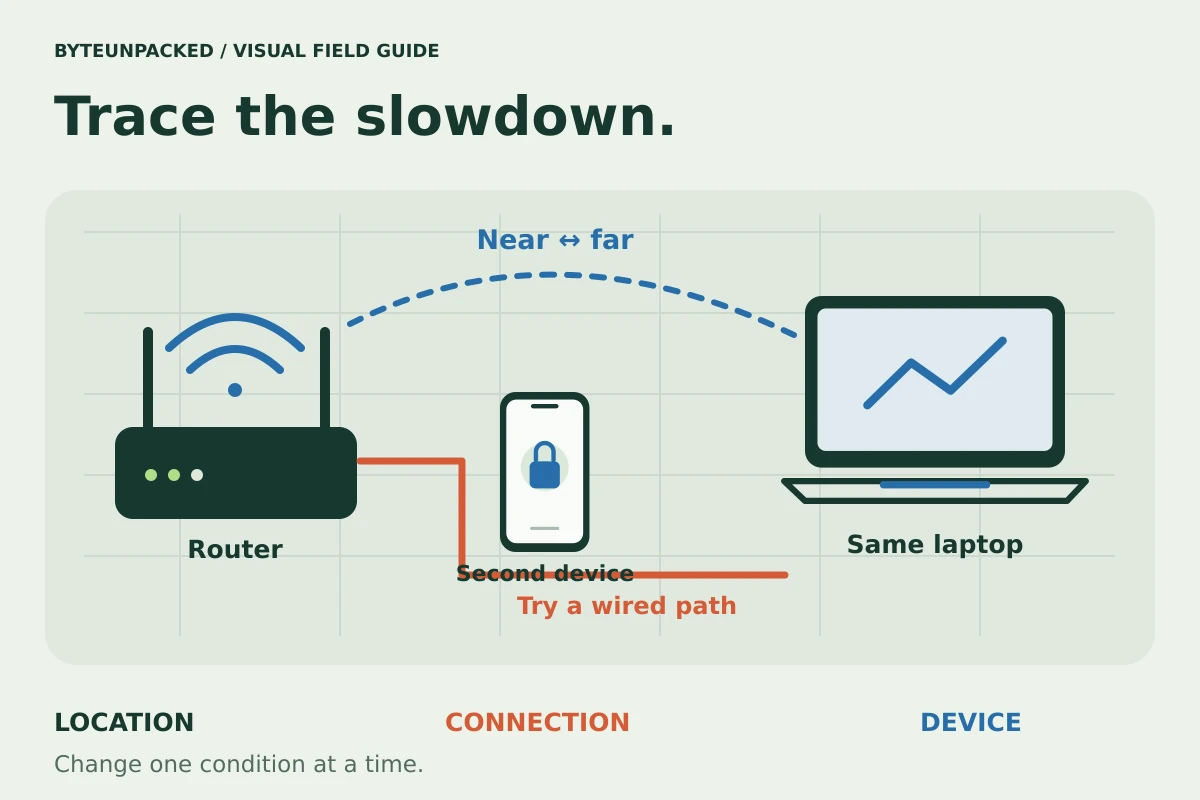
Microsoft's troubleshooting guidance recommends connecting the display or adapter directly to the computer and checking the correct Alt Mode port. Remove an intermediate hub or dock for a controlled comparison when the monitor supports a direct connection. Use the same display and cable, then change only one component at a time.
Our diagnostic inference is straightforward: if a verified direct connection works but the dock path does not, investigate the dock's requirements and configuration. If changing only the cable fixes the picture, the original cable becomes the leading suspect. Neither result establishes that an entire product category is faulty.
There is also a different class of product: USB graphics adapters such as DisplayLink. They use vendor software, rather than behaving exactly like a simple Alt Mode adapter. DisplayLink documents software installation for supported operating systems, including Windows and macOS. Check the dock's actual technology and its manufacturer's setup instructions before assuming that all USB-C display adapters have the same prerequisites.
Retest the mode you actually need
Once a picture appears, confirm the intended resolution, refresh rate, and number of displays. A successful low-demand setup is useful evidence, but it does not establish support for every combination advertised by one component. Keep the complete connection path in view when reading specifications or contacting support.
- Confirm the laptop's exact port supports the intended video technology.
- Use the monitor's specified video input and select it in the monitor menu.
- Check the cable's display capability separately from its power rating.
- Compare a direct connection with the dock path, changing one component at a time.
- For USB graphics docks, follow the vendor's software and operating-system requirements.
Sources & further reading
This is a source-based guide, prepared with AI assistance and checked against the references above. It is not a hands-on product test. Read our editorial approach.