In this article5 sections
Generate the report and keep the original
A shorter afternoon away from the charger does not immediately identify a worn-out battery. Your workload, display settings, background activity, and the battery's remaining capacity all matter. A Windows battery report gives you a record to inspect alongside the symptom, rather than a single verdict about whether the laptop needs replacing.
In Windows 11, Microsoft's instructions are to search for Command Prompt, choose Run as administrator, and run powercfg /batteryreport. Windows prints the path to an HTML file. Open that exact location in File Explorer, then open the file in your browser. The command creates a report; it does not repair the battery or change its charging settings.
Keep a dated copy before generating another one. Microsoft's command reference also documents /output for choosing the destination and /duration for the period analyzed. The default command is enough for a first look. Avoid downloading a third-party 'battery repair' tool just to obtain information Windows already exposes.

Compare capacity with capacity
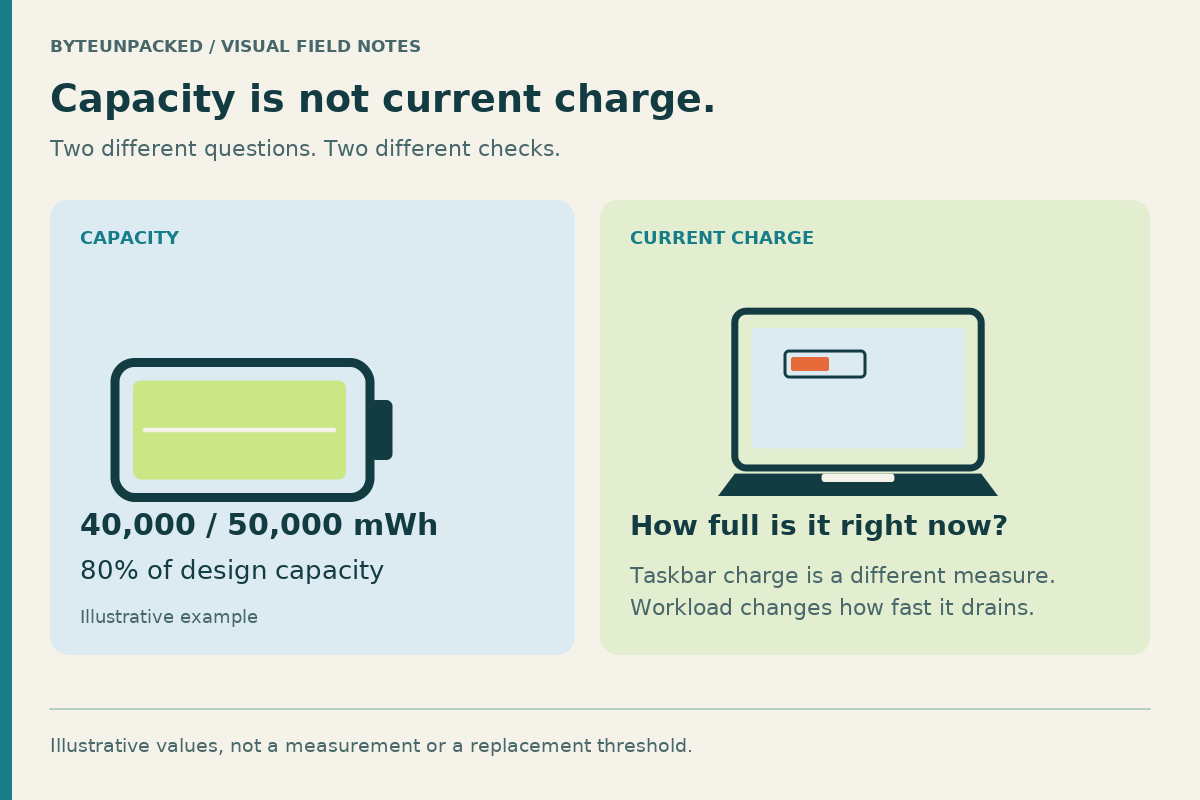
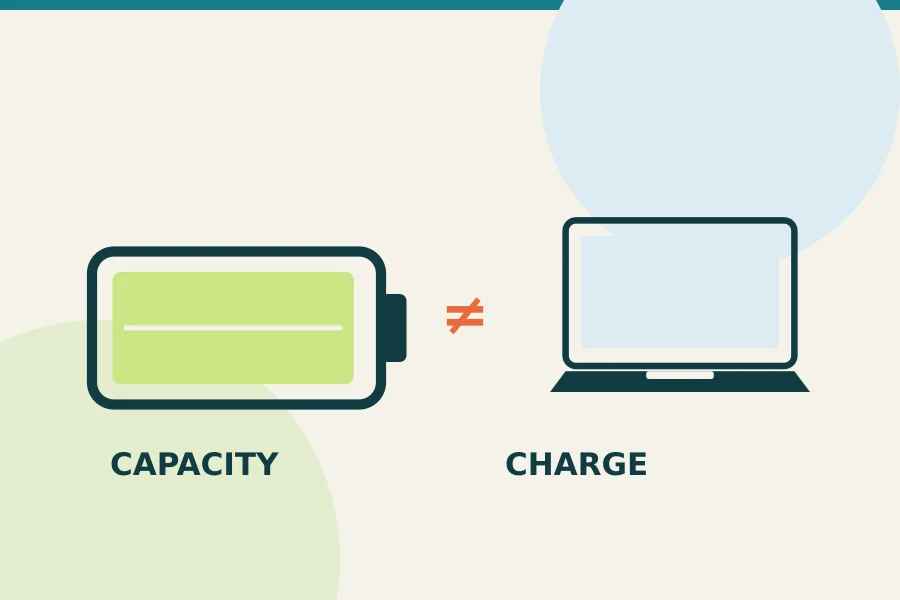
Start with the installed battery information. Design capacity describes the estimated original capacity of a new battery of that type. Full charge capacity describes the currently reported capacity when fully charged. Microsoft distinguishes these two values when describing the capacity ratio used to estimate battery health. They are not the same as the taskbar's current charge percentage.
For an illustrative calculation, suppose the report lists a design capacity of 50,000 mWh and a full charge capacity of 40,000 mWh. Dividing 40,000 by 50,000 gives 0.8, or 80%. That compares the reported full capacity with the design figure. It does not say the battery is currently charged to 80%, and it does not promise 80% of an advertised runtime.
Check that the two values use the same units and belong to the same battery. If values are missing or implausible, record that uncertainty instead of inventing a health percentage. Microsoft's battery API documentation notes that not every controller supplies all capacity information. A report depends on what the hardware reports.
Use the history to ask a better question
Look through the report's usage and capacity history, where available. The useful distinction is between 'the reported full capacity has declined over time' and 'the laptop drained unusually quickly during this session.' Those observations suggest different follow-up questions. Keep the dates and the conditions of use attached to the numbers.
Our recommended comparison is two ordinary sessions doing similar work at similar display brightness, with the same accessories connected. Record starting and ending charge and elapsed time. This is a simple diagnostic comparison, not a laboratory battery benchmark. If your comparison changes the workload, power mode, and screen brightness together, you cannot tell which change explains the result.
A capacity ratio alone does not establish a universal replacement threshold. Decide whether the battery still meets your actual runtime needs, then consult the device manufacturer's diagnostic results, service guidance, and warranty terms. Do not convert a percentage found in an unrelated laptop guide into a rule for every model.
Investigate consumption separately from wear
Windows power and battery settings provide another view of the problem. Microsoft's battery-saving guidance recommends reviewing app battery usage, reducing unnecessary background activity, adjusting display settings, and using energy-saving options. These controls address how quickly energy is consumed; they do not restore capacity lost through battery aging.
Start with one change that matches your observation. If an app dominates usage during the affected period, examine what it was doing before removing it. If the laptop is otherwise satisfactory but drains during long idle periods, investigate its sleep behavior. Save a second report after normal use so you can compare evidence rather than relying on a remembered estimate.
Know when a report is not the next step
Physical damage or swelling is a separate issue from ordinary capacity loss. Microsoft says to stop using a device if its battery expands beyond the enclosure, and to avoid pressure or puncturing it. In that situation, follow the manufacturer's service instructions instead of continuing runtime experiments. A reassuring capacity number would not make physical damage safe.
For an undamaged battery, the goal is a useful decision: keep using it, adjust consumption, or seek a model-specific service assessment. Bring the report, the observed symptom, and the conditions in which it occurs. Those details are more useful than an isolated percentage.
- Save the HTML report with its date and record the symptom you are investigating.
- Compare design and full charge capacity using matching units.
- Inspect trends and comparable real usage, not just one estimate.
- Review app consumption separately from battery wear.
- Use the manufacturer's service criteria; stop testing if the battery is visibly damaged or swollen.
Sources & further reading
This is a source-based guide, prepared with AI assistance and checked against the references above. It is not a hands-on product test. Read our editorial approach.