In this article4 sections
Begin with the laptop’s charging requirements
A USB-C plug fitting into a laptop does not establish that the connection can power it as intended. Start with the laptop manufacturer’s documentation: which port accepts charging, which charging standard it supports, and what power supply is recommended. Record the exact model, because similar-looking machines can have different requirements. Keep the original adapter’s label available as a useful reference.
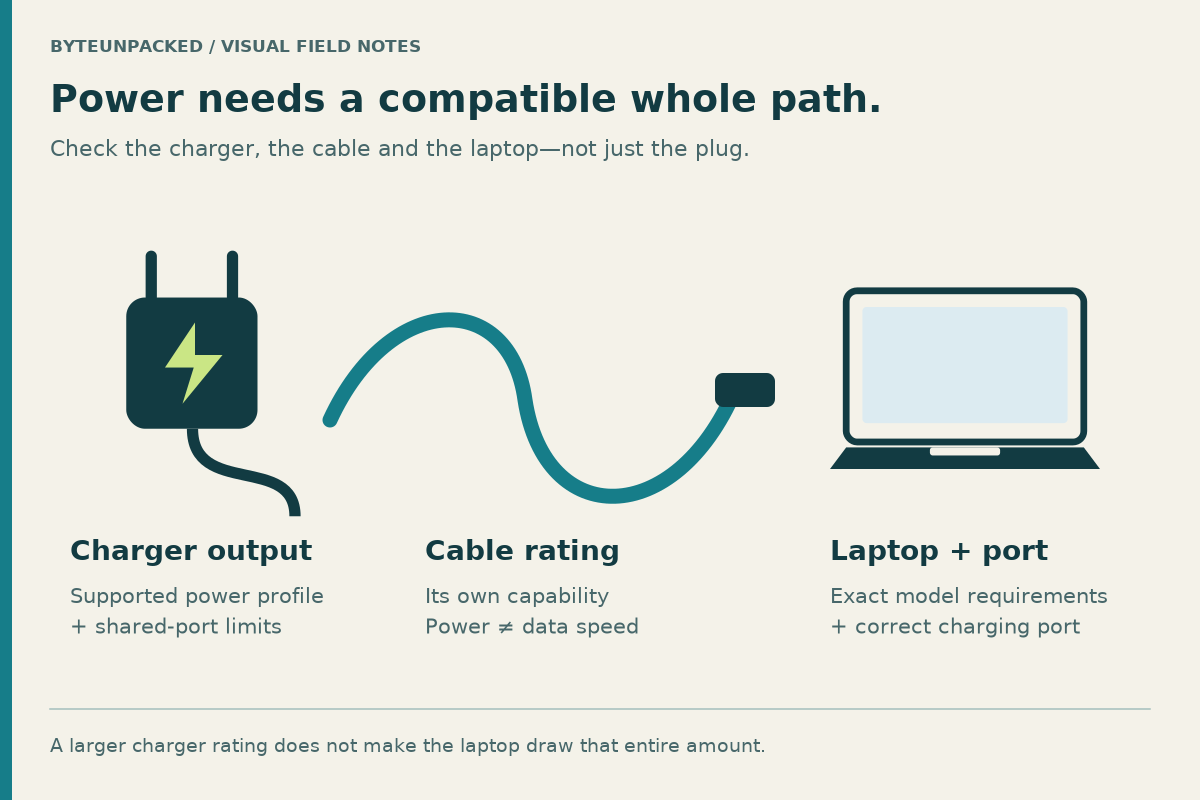
Microsoft lists several possible reasons a Windows PC charges slowly or loses battery while connected: an incompatible adapter, insufficient power, the wrong port, or an unsuitable cable. The supported voltage and charging standard matter alongside the wattage. A small phone adapter and a laptop adapter can share the same connector while supporting different uses.
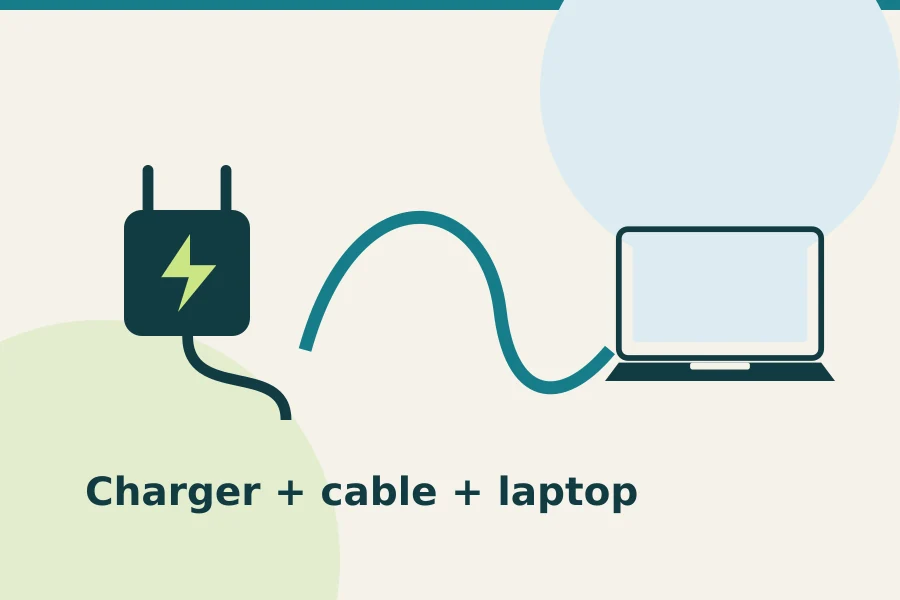
Our suggested inventory is short: laptop model, recommended charger, charging port, replacement adapter model, and cable rating. If a dock or monitor sits between the charger and laptop, include its documented power delivery to the computer. This makes the whole connection visible before you decide that a particular accessory is defective.

Understand what the wattage describes
USB Power Delivery allows compatible devices to negotiate power. USB-IF describes devices taking the power they require rather than receiving an adapter’s full rating indiscriminately. A larger number on a compliant, compatible charger therefore does not mean the laptop must consume that amount. The useful question is whether the devices share an appropriate supported power configuration.
USB-IF documents up to 240 watts for USB Power Delivery 3.1. That is a capability of the specification, not a promise about every USB-C port or adapter. Read the product’s own output specifications. For a charger with several ports, check its manual for the output available to the laptop’s port when other devices are connected.
Apple says USB-C charging Macs can use compliant USB Power Delivery adapters with higher or lower wattage, while recommending at least the model’s specified minimum for the best charging experience. Treat that as guidance for supported Macs, not permission to ignore another laptop manufacturer’s requirements. A charger that works during light use may still be a poor match for your normal workload.
Include the cable in the power budget
The cable has its own capability. USB-IF’s current certification requirements use 60-watt or 240-watt power markings for USB-C to USB-C cables. Those markings help identify a certified cable’s power rating; they do not describe every older cable in circulation. An unmarked cable should not be assigned a rating from its thickness or connector shape.
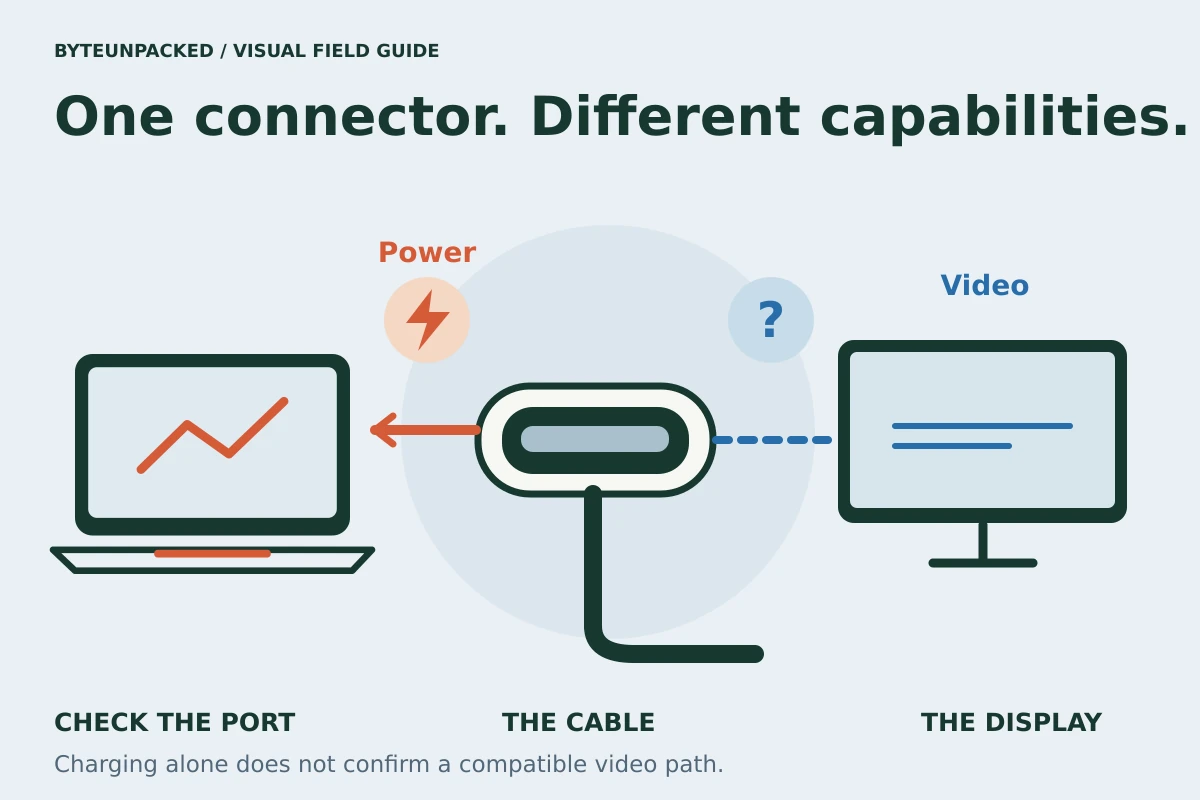
Power capability and data performance are separate specifications. A cable suitable for charging is not automatically suitable for a fast external drive or a display connection. Likewise, buying a cable with a higher power rating does not increase what the charger can supply or what the laptop accepts. Check the capability relevant to the task you actually need.
Our practical recommendation is to use the manufacturer-supplied charging cable as a baseline when available. Label any replacement whose specifications you have confirmed, so it does not disappear into an anonymous drawer of similar cables. If a cable or connector is visibly damaged, set it aside instead of using it as part of a compatibility experiment.
Run a small, repeatable charging check
Connect the known compatible adapter directly to the documented charging port, using a suitable cable. Temporarily leave the dock out of the test. Note the battery level, the computer’s charging message, and the activity you are doing. Then compare the replacement adapter under similar conditions. Change one component at a time so a result points to something specific.
Microsoft recommends checking the correct port and compatible charger and cable; it also suggests charging while the PC sleeps or is off. If the battery gains charge while sleeping but falls during demanding work, that observation helps describe the problem. It does not by itself identify whether the limiting factor is the adapter, cable, dock, or computer’s requirements.
On a Mac, Apple documents checking System Information, Power, AC Charger Information for the connected adapter’s wattage. Treat this as reported charger information, not a measurement of the exact power entering the battery every second. Save the reading alongside your connection details if you need manufacturer support. A reproducible description is more useful than simply reporting that USB-C is slow.
- Confirm the laptop’s charging port and recommended power supply.
- Check the adapter’s supported output and the cable’s power rating.
- Compare a direct connection before adding a dock or other charging loads.
- Use the observed result to identify the next check before buying replacements.
Sources & further reading
This is a source-based guide, prepared with AI assistance and checked against the references above. It is not a hands-on product test. Read our editorial approach.