In this article4 sections
Start with the sender, not the warning
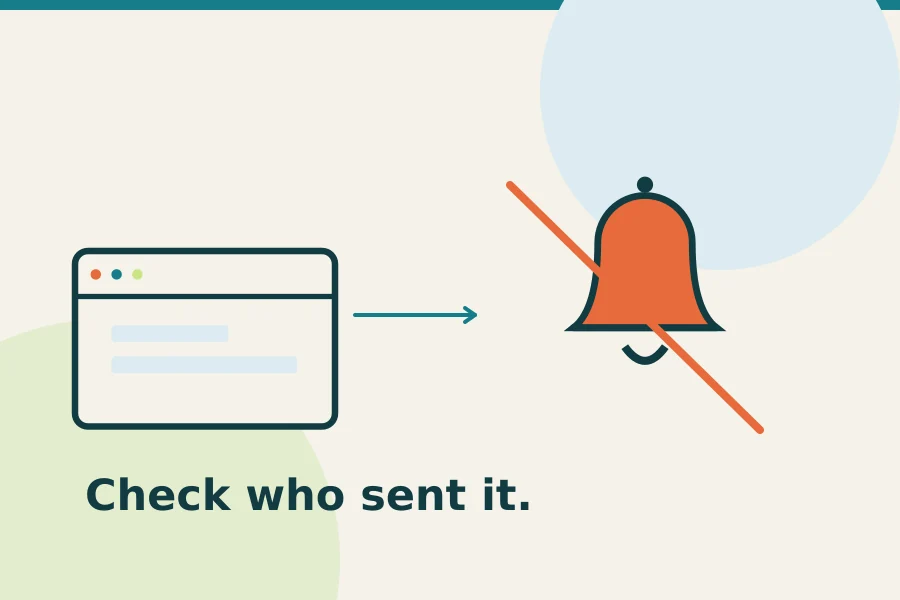
A notification claiming that your computer needs an urgent repair is a reason to pause. Read the browser name and website address shown with the message before interacting with it. A familiar logo inside the message does not establish who sent it. Our recommended first step is to record the visible sender and dismiss the notification without following its advertised fix.
Microsoft warns that technical support scams use alarming messages to encourage people to call, pay, install software, or grant remote access. Its genuine error and warning messages do not include a support telephone number. Do not call a number supplied by an unexpected alert. If you want to check your security status, open your security application independently from the computer’s own menus.
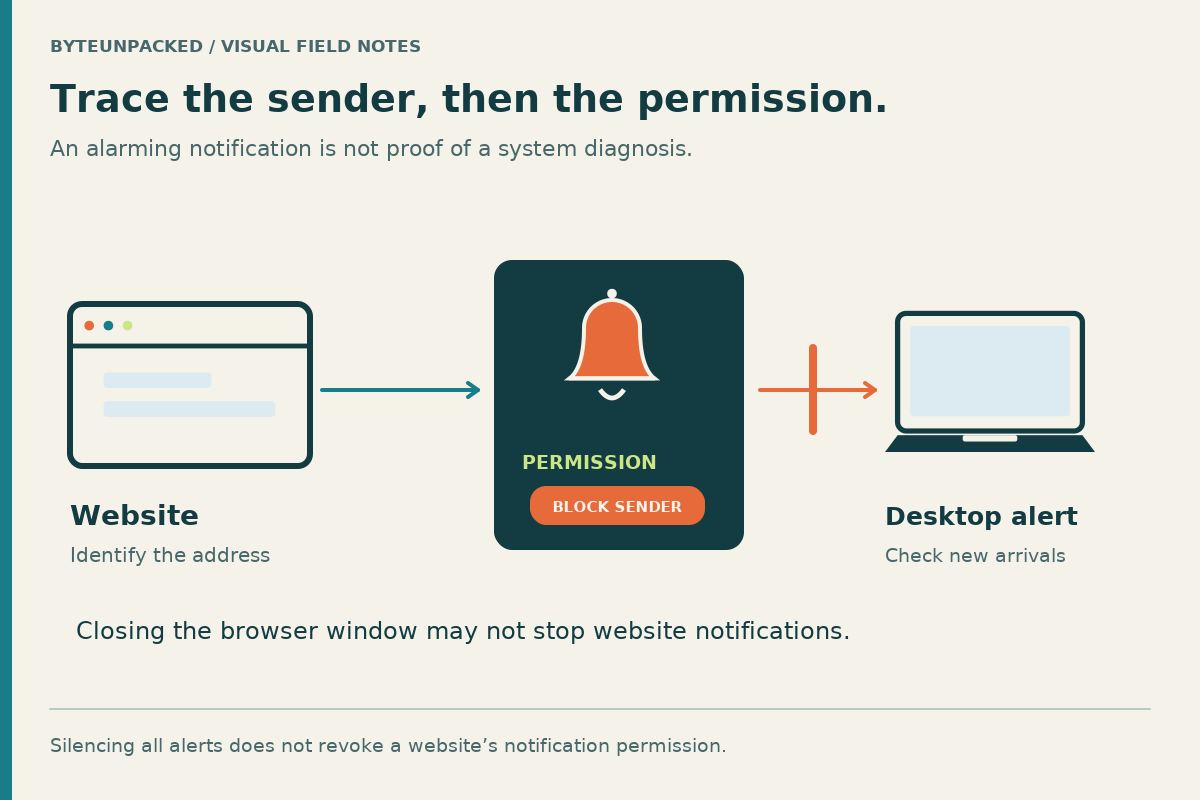
The message alone cannot tell you whether the computer has malware. A site notification can be an unwanted use of a permission you granted earlier. Microsoft notes that Edge website notifications can appear in the operating system’s notification center and may continue when Edge is closed. Closing the last browser window therefore may not stop the sender.

Revoke the website’s permission inside the browser
In desktop Chrome, open Settings, then Privacy and security, Site settings, and Notifications. Review the sites allowed to send notifications and block the unwanted sender. Google also documents adding a website to the list of sites that are not allowed to send them. Work from the address recorded in the notification instead of revisiting a suspicious page to look for an unsubscribe button.
In Edge, open Settings and find Site permissions under Privacy, search, and services. Open All sites, select the relevant website, and set Notifications to Block. Settings labels can change, so searching the browser’s settings for notifications is a useful route when the layout differs. Confirm that you changed the site’s notification permission, rather than a permission with a similar name.
Review the other allowed senders while you are there, but make each decision deliberately. A work calendar or messaging service may have a useful reason to notify you. Our suggested rule is to keep permission only when you recognize both the website and the benefit of receiving its alerts outside the page. An unfamiliar entry deserves inspection, not an automatic assumption about its purpose.
Match the control to the kind of interruption
A website notification, a new browser window, and a warning displayed inside an application are different surfaces. Chrome and Edge document pop-ups separately from website notifications. If the nuisance opens a new tab or window while browsing, changing notification permission may not address it. Write down exactly where the interruption appears before changing another setting.
Windows also offers Settings, System, Notifications for managing application alerts, plus Do not disturb for limiting interruptions. These controls can provide quiet, but silencing the browser at the Windows level does not remove the website’s permission inside the browser. Use the browser’s site controls when your goal is to stop one particular website from sending messages.
Avoid making several broad changes at once. Turning off every browser notification, removing extensions, and resetting the browser together makes the result difficult to interpret. Start with the identified permission. Keep a note of what changed so you can retain the useful controls and investigate any separate symptom on its own terms.
Check what happens next
After blocking the sender, continue your normal activity and watch for new alerts. Old items may still be visible in the notification center; distinguish those from newly delivered messages. If another alert appears, compare its sender with your original note. Check the browser and profile named by the new message instead of repeatedly changing a permission in the wrong place.
If you already installed software, supplied payment information, or allowed remote access, removing notification permission is only one part of the response. Follow Microsoft’s recovery guidance for technical support scams and contact your organization’s IT team for a managed device. Tell them what happened and which actions you took, without trying to conceal the interaction.
- Record the visible browser and website sender before dismissing an unexpected alert.
- Block that website’s notification permission from the browser’s own settings.
- Treat new windows, application warnings, and continuing alerts as separate observations.
- Keep notifications enabled only where you recognize a useful purpose.
Sources & further reading
This is a source-based guide, prepared with AI assistance and checked against the references above. It is not a hands-on product test. Read our editorial approach.