In this article5 sections

Do passkeys transfer to a new phone?
Synced passkeys can become available on a new phone when you sign in to the same compatible password manager and complete its approval or recovery steps. Device-bound passkeys do not move through that sync process. Before erasing the old phone, test a fresh sign-in on its replacement using a method that does not depend on the old phone.
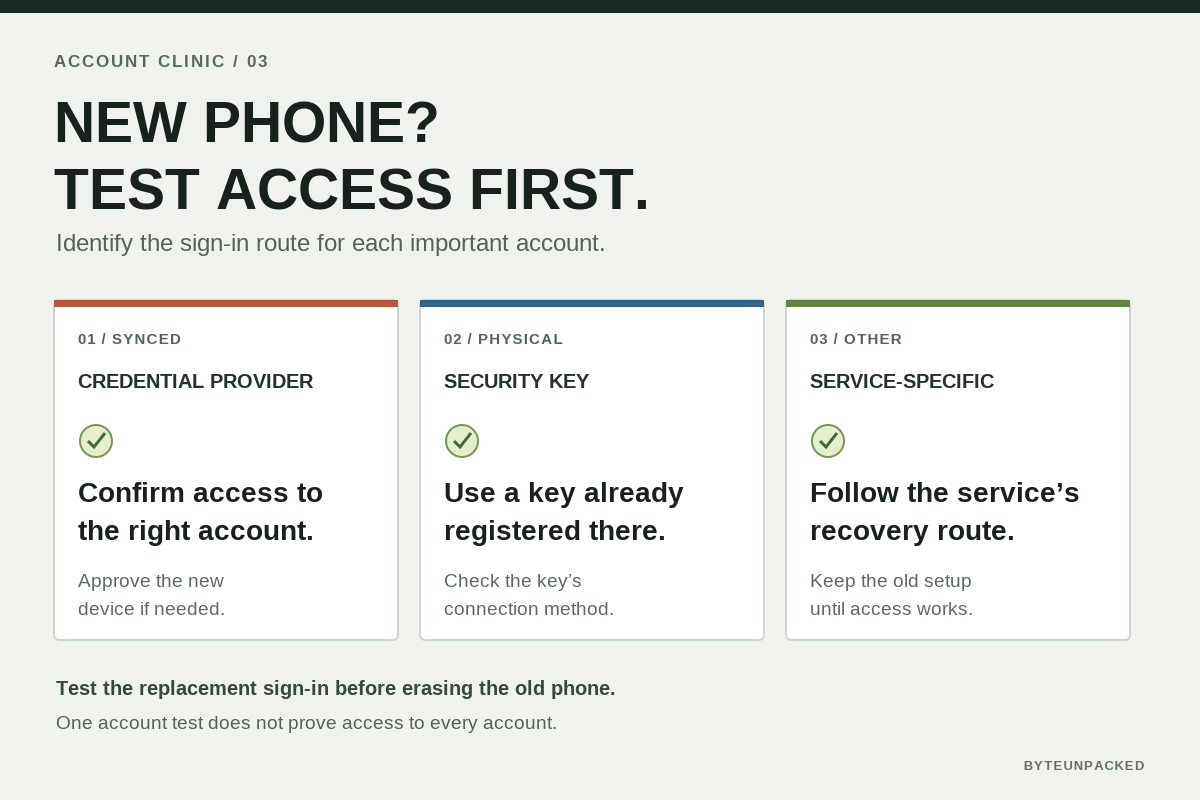
The most useful passkey check happens while your old phone still works. List the accounts that would make a replacement difficult: your main email, the account behind your password manager, your mobile service, and any essential work or personal services. For each one, identify the actual account name and the sign-in methods you have registered.
Do this before a trade-in appointment or factory reset. A phone that still opens an app may simply have an existing session; that does not demonstrate that a fresh sign-in will work. Our recommended test is a new sign-in on another device you control while keeping your working session available. Never sign out everywhere just to test recovery.
Find the provider, not just the fingerprint prompt
A fingerprint or face prompt tells you how you authorize a sign-in. It does not tell you where the credential is stored. Check the saved account entry in your password manager and the service's security settings. Record the provider and whether the passkey is synchronized or tied to a particular device or security key.
FIDO distinguishes synced passkeys from device-bound passkeys. A synced passkey can become available on compatible devices accepted by the same provider. A device-bound passkey stays with its authenticator; losing that authenticator can mean losing that credential. FIDO also identifies provider-account loss and incompatible replacement devices as reasons synchronized credentials can become unavailable. Do not assume that changing phone brands or password managers automatically transfers every passkey.
This makes a useful planning question: if this phone vanished now, which other device or registered method would open each account? Write the answer down without copying passwords or recovery secrets into an ordinary checklist.
Changing password managers is a separate step from replacing a phone. On supported Android setups, Google now documents direct passkey imports and exports between compatible managers. Use the supported transfer flow and test the result. If your providers do not support that route, use an existing sign-in method and register a new passkey where the service allows it.
Check how you would unlock the password manager
The account that synchronizes your credentials needs its own recovery plan. Otherwise, you can end up needing the missing phone to reach the very passkey you hoped would replace it. Read your provider's current instructions and check that its recovery contact details are yours and still reachable.
Apple says passkeys stored in iCloud Keychain synchronize across a user's devices, with additional protection when a new device joins. Its documented keychain recovery route can require the Apple Account credentials, access to a trusted phone number, and a previous device passcode. Apple also offers an account recovery contact. Setting up synchronization does not remove these recovery requirements.
For Google Password Manager, sign in to the same Google Account on the replacement and follow the prompts to unlock your saved passkeys. Google documents the Google Password Manager PIN or an Android device screen lock as recovery factors. Check which one applies to your setup while the old phone is still available.
Establish a second route and test the replacement
Where a service permits it, register another passkey or an appropriate backup sign-in method and store any recovery codes securely outside the phone you are replacing. Google's 2-Step Verification help lists options such as another signed-in phone, a backup code, or a registered security key, depending on what you previously configured. If none is available, account recovery can be necessary. These are service-specific options, not guaranteed shortcuts.
After setting up the replacement, perform a fresh sign-in to each essential account. Check which credential provider the prompt uses. Using the old phone to approve a nearby-device sign-in can get you into an account, but it does not prove the new phone can authenticate independently. Repeat the test using a method that will remain available after the old phone leaves your possession.
Related guide: Move your authenticator app to a new phone.
Retire the old device deliberately
Only after the replacement works should you follow the manufacturer's transfer and erase procedure. Review the account's device sessions and passkey entries as separate checks. Google documents different removal steps for passkeys you created and passkeys automatically created on Android. A stored credential can also remain in a third-party manager after its registration is removed from the account.
Read each entry carefully before deleting it. A label resembling the old phone's name is not enough to establish which other devices use a synchronized credential. Keep the verified working method and remove access associated with a lost, shared, or retired device according to that service's instructions.
- Identify the credential provider for every essential account.
- Confirm recovery details and a sign-in route that survives loss of the old phone.
- Test the new device with a fresh sign-in before erasing anything.
- Review old sessions and credentials after the transfer, preserving the working replacement.
Sources & further reading
- FIDO Alliance: Synced Passkey Deployment — Emerging Practices for Consumer Use Cases
- Apple: About the security of passkeys
- Google: Fix common issues with 2-Step Verification
- Google: Sign in with a passkey instead of a password
- Google: Manage passkeys in Chrome
- Google: Import or export passwords and passkeys with Chrome on Android
This is a source-based guide, prepared with AI assistance and checked against the references above. It is not a hands-on product test. Read our editorial approach.