In this article5 sections
Inventory codes and approval prompts separately
Before trading in or erasing a phone, open your authenticator and list the accounts it protects. Record the service and username, but do not copy the changing codes or setup secrets into that inventory. Pay particular attention to your primary email, password manager, work access, and any service you would struggle to recover.
An authenticator can contain different kinds of entries. Some generate changing one-time codes; others approve sign-in requests or support a provider’s passwordless flow. Our recommendation is to mark which behavior you actually use for each account. Seeing a familiar account name after a restore is not enough to show that every behavior has transferred.
This task concerns authenticator codes and approvals. Passkeys have their own storage and transfer rules, covered in our separate phone-replacement guide. Treating every sign-in method as one generic phone backup makes it easier to overlook a method that needs separate preparation.

Establish an independent recovery route first
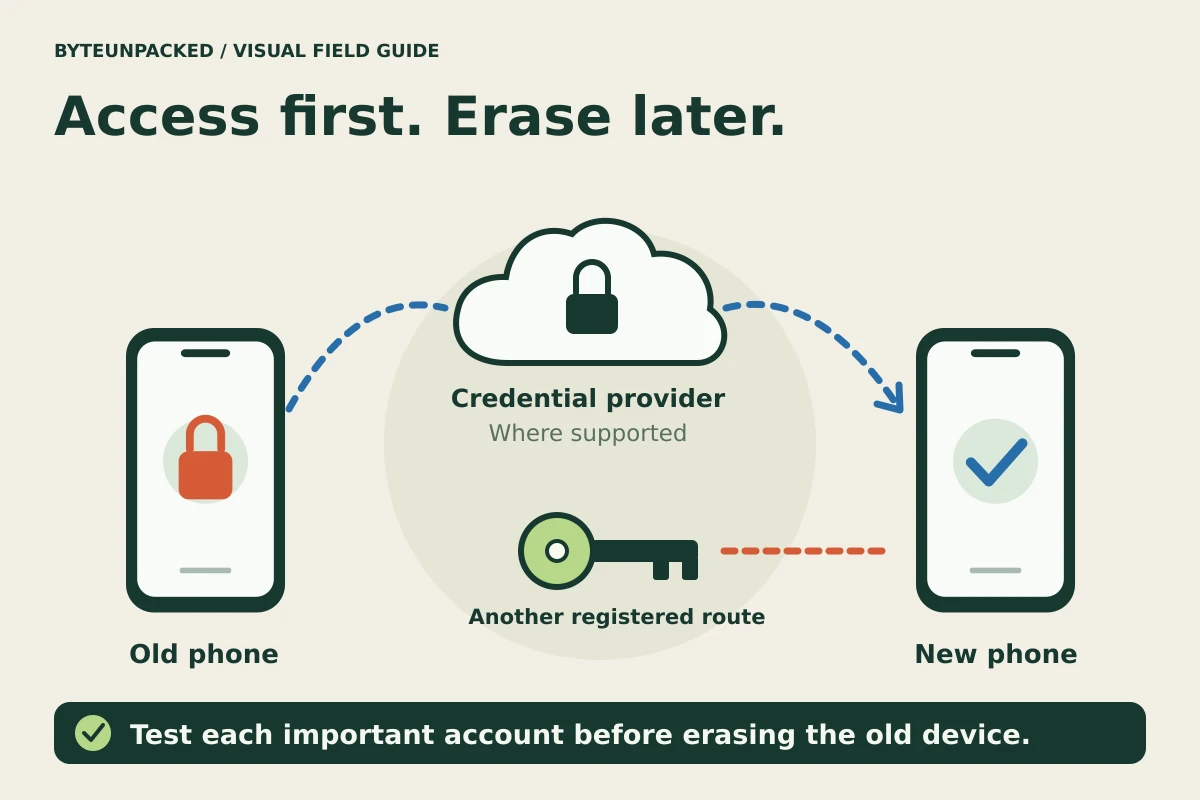
For each essential service, review its own security settings while you still have a working session. Identify an already registered alternative or recovery route that does not depend solely on the phone being replaced. Keep the working session available throughout the move; signing out everywhere creates an unnecessary obstacle.
Google, for example, offers backup codes for eligible accounts with 2-Step Verification. Each is usable once, and generating a new set invalidates the previous set. These codes are for signing in to the Google Account. They do not import all the unrelated services listed inside Google Authenticator.
Our suggested record is simple: account, recovery method, protected storage location, and whether you have verified access. Keep the actual secrets in appropriate secure storage outside the retiring phone. For a work account, check the organization’s approved process before moving anything. If the only recovery route is unclear, resolve that account first instead of assuming the transfer will make the uncertainty disappear.
Choose the transfer route your app supports
Google documents automatic synchronization when you sign in to the same Google Account inside Google Authenticator on a new device. If you use the app without an account, it documents a manual transfer requiring the old phone, an updated app, and the new phone. On the old device, use Transfer codes and Export codes; on the replacement, use the import option and scan the generated QR code or codes.
Treat a transfer QR code as a credential-bearing secret. Our recommendation is to scan directly between devices in a private setting, without sending screenshots through chat or leaving them in a shared photo collection. Work from the app’s current instructions if the menus differ. Do not assume a normal phone migration copied the authenticator’s usable credentials.
Microsoft Authenticator has a different backup process. Its documentation says backup and restore must use the same device type; an iOS backup cannot be restored to Android. Check the backup account and platform-specific instructions before changing phones. If you are crossing platforms, plan account-by-account re-registration using each service’s approved method rather than promising yourself a universal restore.
Restore entries, then finish account-specific setup
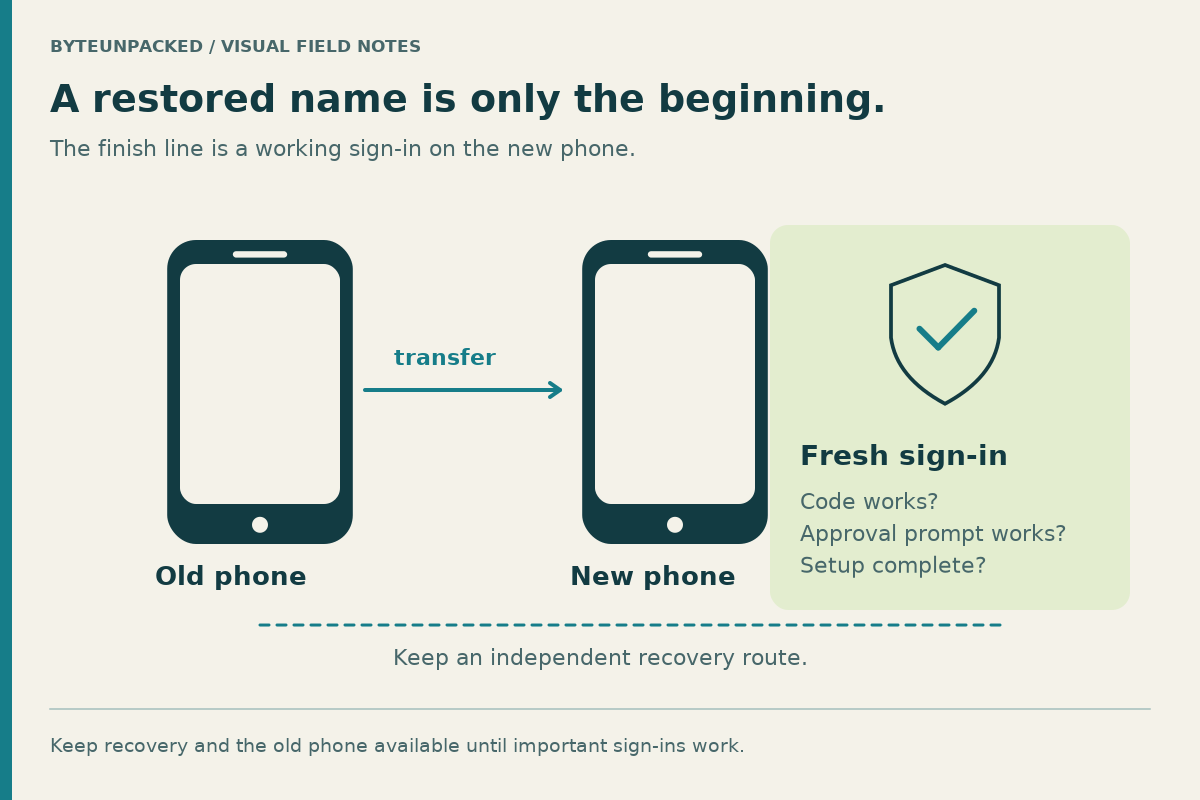
Microsoft distinguishes restored one-time-code accounts from work or school accounts and personal accounts using passwordless sign-in. Some restores recover only the account name, after which sign-in or additional verification is required. An Action required or Sign in to restore message therefore needs attention before you consider the move finished.
Follow the provider’s prompts on the new device and check each important service independently. Our recommended test is a fresh sign-in in another browser session you control, explicitly using the replacement phone’s method. Keep the original working session and the old phone available until that test succeeds.
Record the result for each account, including whether you tested a generated code or an approval prompt. If one entry fails, investigate that entry rather than resetting the entire authenticator. Do not repeatedly guess codes or disable every second factor as a shortcut. Use the service’s documented recovery or administrator-assisted process when necessary.
Retire the old phone without deleting synchronized credentials
When the new phone works, review old device registrations and account sessions through each service’s security settings. Deleting an entry inside an authenticator and revoking a device at the service are different operations. Google warns that deleting synchronized Authenticator codes also removes them from other synchronized devices. Do not clear the old app’s entries one by one as an assumed local-only cleanup.
Follow the phone manufacturer’s account sign-out and erase instructions when you are ready to dispose of the old device. Keep your recovery arrangements current afterward. The successful migration should leave you with both a functioning replacement and an understood route back in if that replacement is later lost.
- List every authenticator entry and its sign-in behavior.
- Prepare service-specific recovery before moving the app.
- Use the correct sync, transfer, or restore route for the app and platforms.
- Test fresh sign-ins with the new phone, including approval prompts.
- Avoid deleting synchronized codes while cleaning up the old device.
Sources & further reading
This is a source-based guide, prepared with AI assistance and checked against the references above. It is not a hands-on product test. Read our editorial approach.