In this article5 sections
Start with the job each extension performs
Open your browser's extension manager and make a short inventory. For each extension, answer three questions: what do I use it for, which sites does it need, and who publishes it? If you cannot explain why it is installed, investigate before leaving it active indefinitely. A tool installed for one task can remain part of your browser long after that task ends.
Our suggested review order is practical: unused extensions first, then extensions with access across many sites, then tools that run only where you invoke them. The aim is a smaller set of understood permissions. An impressive download count or a familiar icon is not a substitute for reading the permission request and publisher information.

Read permissions as capabilities
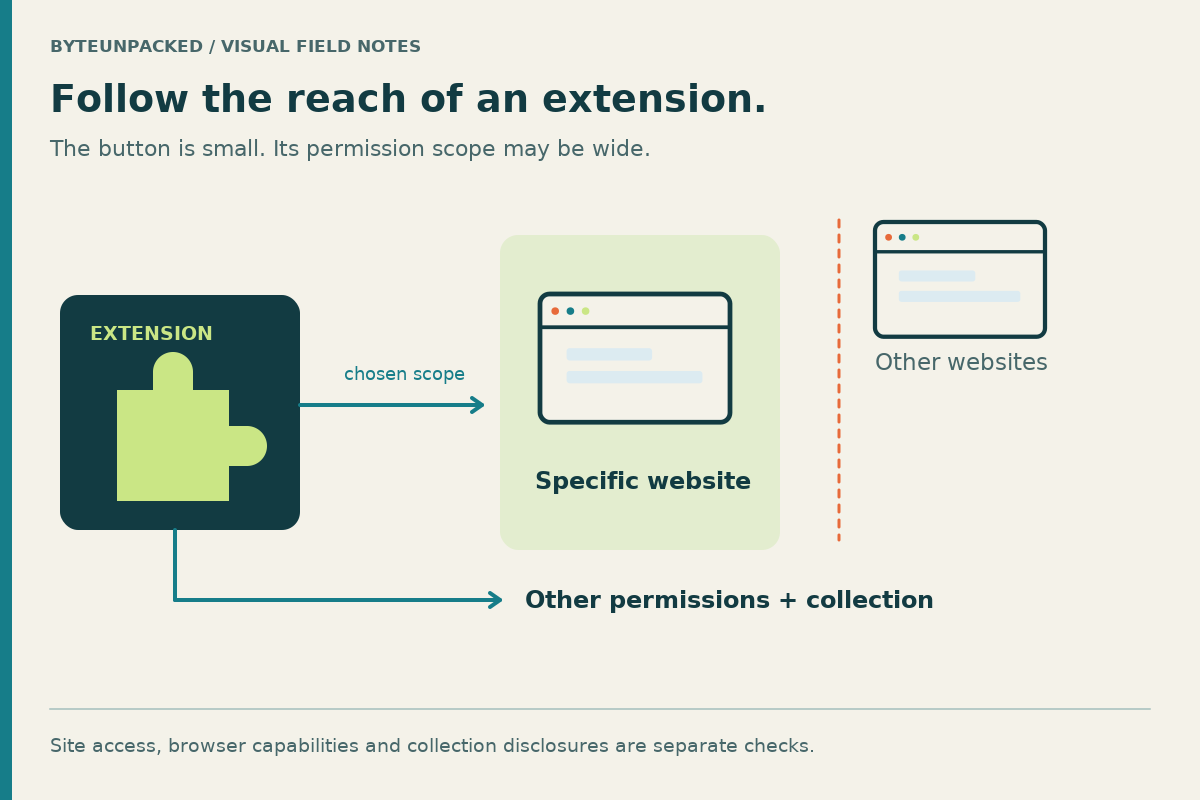
Mozilla explains that extension permissions can cover webpage content, information entered into pages, browser settings, bookmarks, and other browser capabilities. Access to data on a named website can include information you enter there, such as usernames and passwords. Consider the sensitivity of the actual sites involved, rather than treating all website access as equivalent.
A broad permission is not by itself evidence that an extension is malicious. A password manager or page-modifying accessibility tool may need substantial access to do its job. The useful question is whether the requested capability is proportionate to the feature you want and whether you trust the developer with it.
Permissions describe what software can do, not a complete record of what it has done. Conversely, a simple-looking toolbar button does not establish that the extension has only simple access. Read the browser's details view and the developer's explanation together. If the explanation does not resolve the mismatch, disable the extension while you investigate.
Narrow Chrome site access where it fits
In Chrome on a computer, open the menu, choose Extensions, then Manage extensions. Open an extension's Details page and look for its site-access setting. Google's documentation describes access on selection, on specific sites, or on all sites. The available control depends on the permissions that extension requests.
For a tool you use on one service, allowing only that site may fit better than all-site access. For an occasional page tool, access when you select it may be enough. After a change, reload the relevant page and test the feature you actually need. If something stops working, investigate the missing permission rather than granting every permission immediately.
Google explicitly notes a limitation: changing website access does not restrict lower-level network access through VPN or proxy settings. These controls are therefore not a universal isolation switch. Inspect the extension's other capabilities separately, including whether you have allowed it to run in incognito mode.
Review Firefox permissions and data collection separately
In Firefox, open Extensions and themes, choose Extensions, and select the extension. Its Permissions or Permissions and data view lists requested access. Mozilla documents switches for optional permissions, allowing you to disable optional capabilities you do not need. Required permissions may instead be a condition of using the extension.
Optional means the extension has exposed a capability as optional; it does not guarantee every feature remains available when you switch it off. Change one setting and test the relevant feature. Do not assume Chrome's site-access controls and Firefox's permission controls are identical just because an extension exists in both stores.
Mozilla also distinguishes access permissions from disclosures about personal-data collection. Its documentation for Firefox 140 and later describes collection categories and optional collection controls. Review both what the extension can access and what it says it collects or transmits. A permission to read a page and a declared practice of sending page content to a service answer different questions.
Remove unused tools and revisit meaningful changes
Disable an extension temporarily if you are unsure whether you still need it. If your normal tasks work without it, removal is a reasonable next step. For an essential extension, keep a brief note explaining the access it needs. That gives you a baseline when a later update requests more permissions or a feature changes.
Our recommendation is to repeat this review when installing a new browser, adopting a new extension, or encountering an unexpected permission request. On a work-managed browser, follow your organization's policy and ask its administrator about controls you cannot change. A permission review is useful housekeeping, not proof that every remaining extension is safe.
- Keep extensions whose purpose and publisher you can identify.
- Match website access to the sites where you use the feature.
- Review optional permissions, private-window access, and collection disclosures.
- Remember that Chrome site-access changes do not constrain VPN or proxy permissions.
- Test after narrowing access, and remove extensions you no longer need.
Sources & further reading
This is a source-based guide, prepared with AI assistance and checked against the references above. It is not a hands-on product test. Read our editorial approach.