In this article6 sections
Start with what the task actually needs
Before editing a document, decide whether the AI needs the whole file. If you only want help rewriting one paragraph, a carefully checked excerpt may be sufficient. Remove names, account identifiers, addresses, and unrelated pages that do not help answer the question. Use consistent placeholders where relationships matter, such as Customer A and Supplier B.
Keep the original in its normal protected location and make a clearly named working copy. Redaction is designed to remove information permanently from the sharing copy. Adobe warns that applied and saved redactions cannot be undone, while Microsoft recommends using Document Inspector on a copy because some removed information cannot be restored.

Preserve the meaning without preserving every identifier
Consider an invented customer-service example. The task is to improve an explanation of a delayed delivery. The assistant may need to know that the customer reported a damaged item and was offered a replacement, but it probably does not need the customer's home address or full order number. Replace those details consistently and check that the remaining timeline still makes sense.
Read each page after the edits for indirect clues as well. Removing a name may leave a distinctive job title, a precise address, or a quoted passage that reveals the same identity. Decide which details are genuinely needed for this task. Replacing names with labels is useful editing, but it is not a guarantee that the document has become anonymous.
If removing details makes a passage ambiguous, rewrite that passage in the sharing copy or use a short factual summary. Keep a record of your substitutions locally if you need to restore names in your own final response later.
A marked area still needs an applied redaction
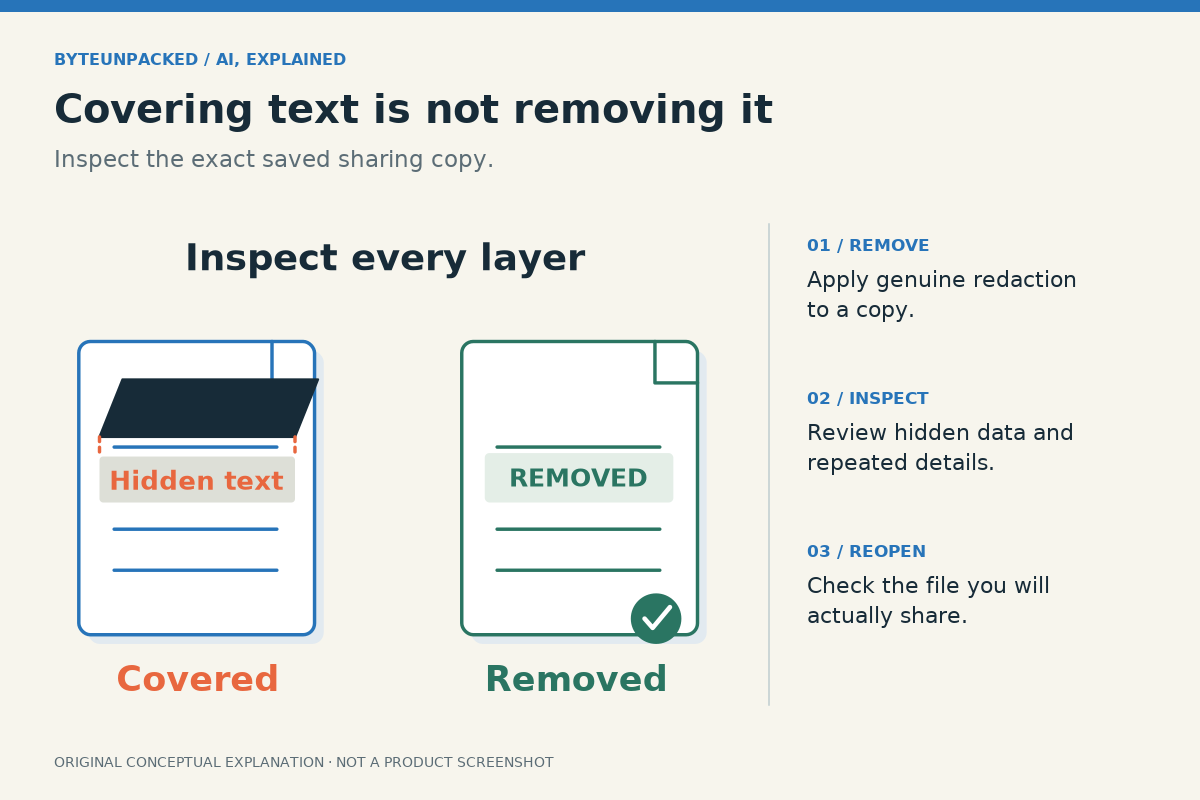
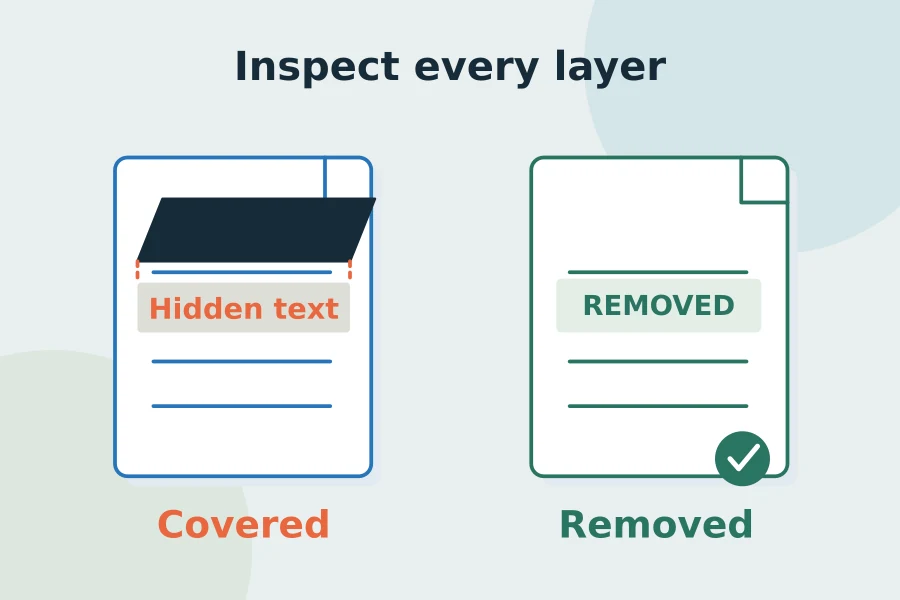
Drawing a rectangle, changing the text color, or highlighting text does not establish that the underlying information was deleted. The UK Information Commissioner's Office demonstrates how text hidden by black highlighting can remain in an electronic document and be recovered by copying it into a text editor. Exporting that kind of markup to PDF may preserve the same problem.
Use a tool specifically intended to redact document content. In Adobe Acrobat's documented workflow, selecting text or an image is followed by Apply and then saving the result. A file with areas merely marked for redaction is not the finished sharing copy. Other editors have different controls, so confirm what their apply-and-save step actually does.
Review the whole document for repeated instances. A customer's name might appear in a heading, a signature image, a footer, and a quoted email. Check scanned pages visually as well as searchable text; searching for a name alone will not find every image containing it.
Inspect information outside the visible page
Adobe distinguishes redacting visible text and graphics from sanitizing hidden information. Its sanitization documentation includes metadata, comments, and hidden layers. An apparently clean page can therefore still be the wrong file to share. Review the hidden-information options in the editor and remove material that the recipient does not need.
If your starting file is an Office document, review it before producing the final PDF. Microsoft's Document Inspector helps find hidden data and personal information in supported documents. Its scope depends on the file and application, so read the inspection results instead of treating a completed scan as a blanket privacy guarantee. After conversion, inspect the final PDF too.
Reopen the exact file you will upload
Save the sharing copy under a distinct filename, close it, and reopen that saved file. Check the filename and folder before attaching anything. Then perform several checks together:
- Look through every page, including headers, footers, images, and appendices.
- Search for removed names and identifiers, then try copying text around the redacted areas into a local text editor.
- Review document properties and any remaining comments or attachments that your editor exposes.
- Check that the remaining context does not unnecessarily identify the person or organization.
Decide whether the copy is ready to share
These checks can catch mistakes; they are not proof that every hidden element has been removed. If you cannot establish that the copy is suitable for sharing, use a smaller manually reviewed excerpt or an approved document-handling process. Also check whether the chosen AI service and account are appropriate for the remaining information. Redaction changes the file; it does not determine the service's retention, access, or data-use settings.
Sources & further reading
This is a source-based explainer, prepared with AI assistance and checked against the references above. It is not a hands-on product test. Read our editorial approach.