In this article5 sections
Check what the tool can actually read
A PDF is a container, not a guarantee of clean text. Open it before uploading and try selecting a paragraph. Inspect pages containing tables, small footnotes, and scanned material. A document can mix selectable text with images of pages. This first look tells you which parts may need closer checking rather than assuming every page will be handled alike.
Product behavior also matters. Anthropic's consumer help distinguishes visual PDF processing from text-only handling, with conditions that depend on document size. Its developer documentation describes API PDF processing separately. Check the documentation for the product and route you are actually using; a feature supported through an API does not automatically describe every chat interface.
If the PDF contains private material, confirm that you may upload it and that the service's handling settings meet your needs. Keep an unchanged copy of the original. For a long document, split by coherent sections if necessary and record the original page ranges so the later summary remains navigable.

Ask for a specific reading job
A request to summarize everything leaves the assistant to decide what matters. Give it a purpose: compare the requirements, list the report's findings and limitations, or identify the proposed actions and their owners. Say whether you want only the document's claims or also a separate explanation of their implications.
For a report, a useful request is to produce five findings with supporting page references, then list limitations and unanswered questions. Ask it to label any inference and to say when the document does not supply an answer. Those instructions are a workflow aid, not a guarantee of factual accuracy; you will still check the important claims.
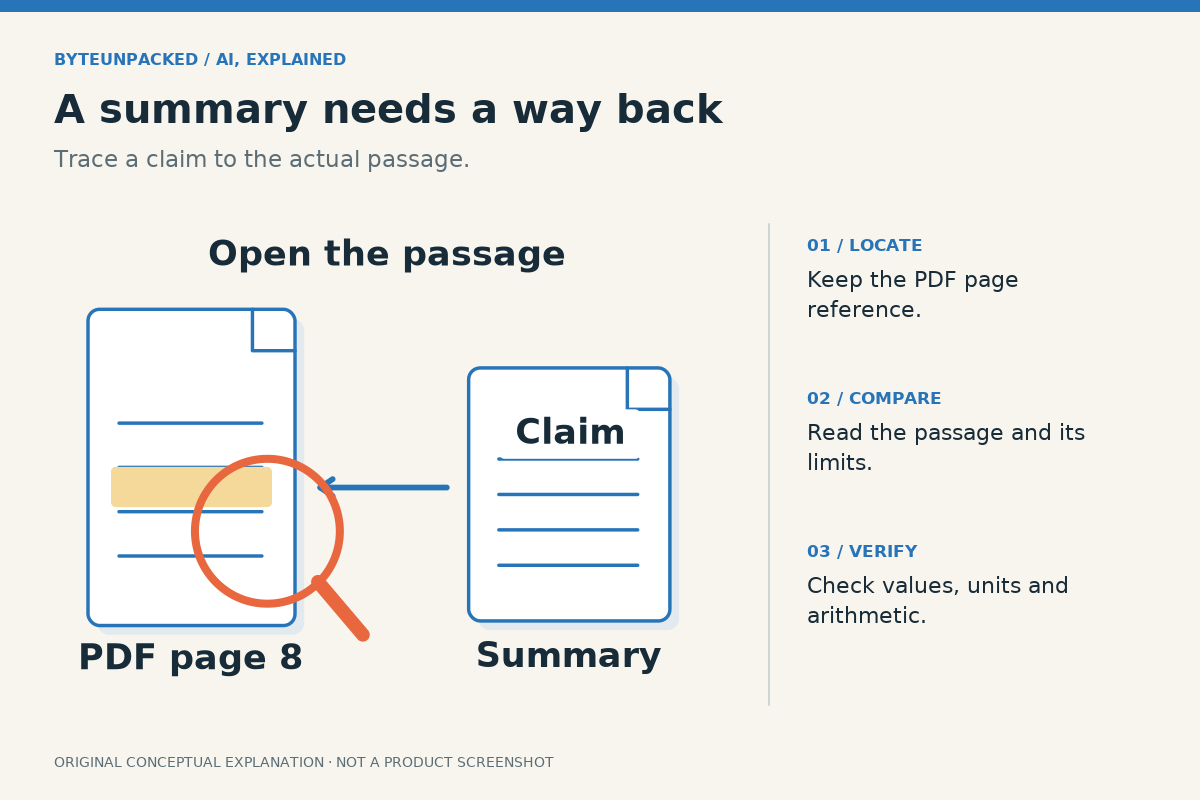
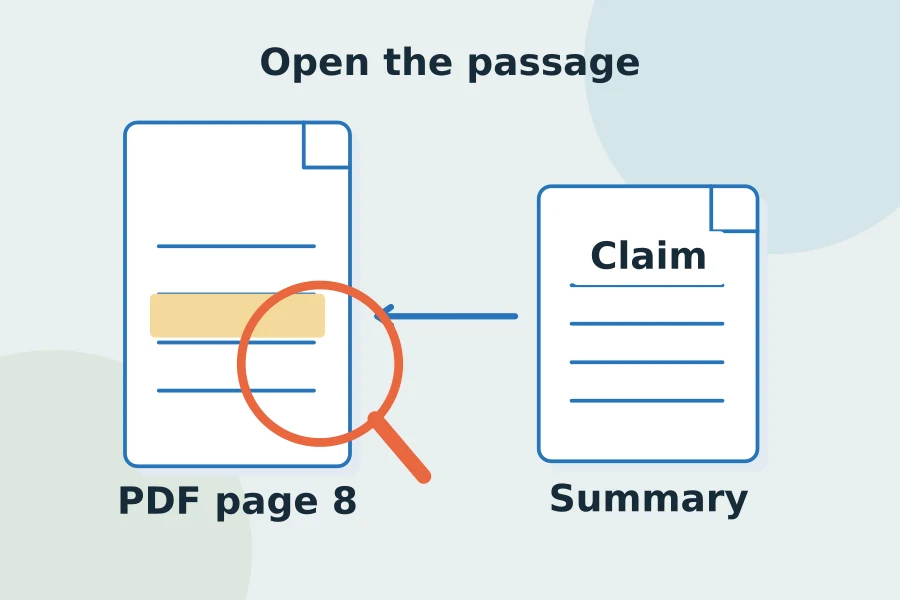
Specify the page convention. Anthropic's consumer guidance recommends the PDF viewer's page numbers rather than the numbers printed within the document. A cover and contents page can make those differ. If necessary, record both: PDF page 8, printed page 5. Keep that convention throughout the notes.
Understand what a citation proves
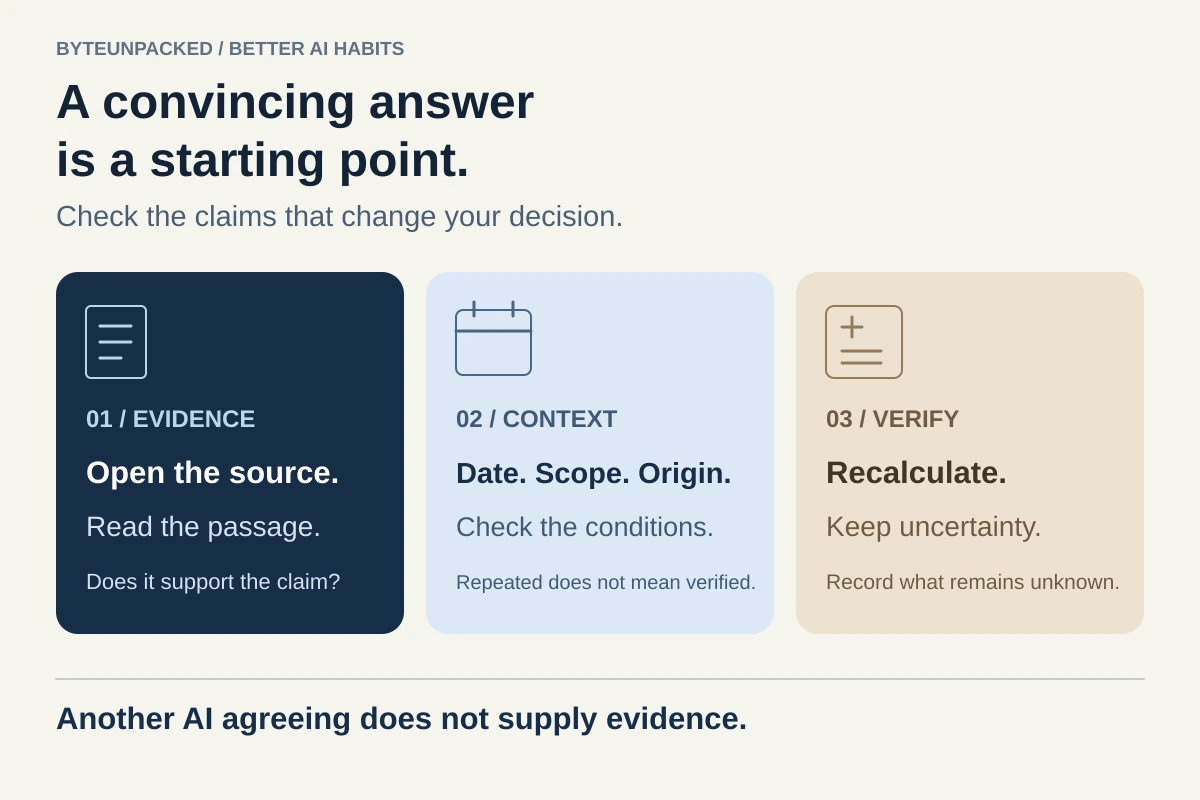
A page number typed into an answer is a lead to inspect. It might point to a relevant page without supporting the exact conclusion. Open the page and ask whether the passage really says what the summary claims, with the same scope, conditions, and time period. The presence of a citation does not settle that question for you.
Some applications provide structured source references. For example, the Claude API has an optional citations feature that returns locations within supplied documents, including PDF page ranges. This is a developer capability that an application must enable; it should not be assumed from the mere presence of a Claude-powered chat window.
Anthropic also distinguishes text citations from visual understanding: its citation feature cites extractable document text, not images. A scan without extractable text therefore cannot supply those text citations even if a vision-capable model can interpret the page. After adding OCR, check the recognized words and numbers against the original image before trusting the resulting references.
Give tables and numbers a separate pass
Dense pages deserve targeted questions. Anthropic's PDF documentation warns that complex tables and heavy graphics affect processing requirements, while its vision guidance notes that low-quality or small images can be misinterpreted. A successful upload is not proof that every cell, axis label, or footnote was read correctly.
For each number that matters to your decision, record the source page, row or chart, unit, period, and comparison group. Check negative signs, percentages, and whether the figure is a total or a change. If the summary computes something, ask it to show the input values and calculation separately, then verify the arithmetic with a calculator or spreadsheet.
Suppose a fictional table shows 120 support requests in one month and 150 in the next. The increase is 30 requests, or 25% relative to the earlier month. A summary saying 30% would change the finding. This example is simple by design: checking the underlying values makes the error visible without needing another AI opinion.
Save a summary with an audit trail
Keep the final summary beside the document's title, version or date, and source location. Add a short note identifying what you checked and what remains uncertain. For important decisions, use the summary to find the relevant passage and read that passage in context; it is a guide back to the evidence.
- Verify the main conclusion, the most consequential number, and any recommendation you intend to act on.
- Check that qualifications and contrary findings survived the compression.
- Separate statements in the document from the assistant's interpretation and your own decision.
- Keep page references consistent, including any mapping created when splitting the PDF.
- Mark unreadable or unsupported details as unresolved instead of filling the gaps.
Sources & further reading
This is a source-based explainer, prepared with AI assistance and checked against the references above. It is not a hands-on product test. Read our editorial approach.