In this article5 sections
Start with the person you want privacy from
Private browsing is useful when you want fewer traces of a browsing session left in the browser for the next person using your device. It can also provide a separate session for checking a website while signed out. Those are specific benefits. They do not establish that a website, employer, or internet provider cannot observe any of your activity.
Before opening a private window, describe your goal in one sentence. You might want a gift search absent from the shared computer's browser history, or you might want to check whether a page works without your usual login. Those goals fit the feature better than an undefined expectation of being invisible. The person using the computer later and the service receiving your requests are different observers.

The private session has a beginning and an end
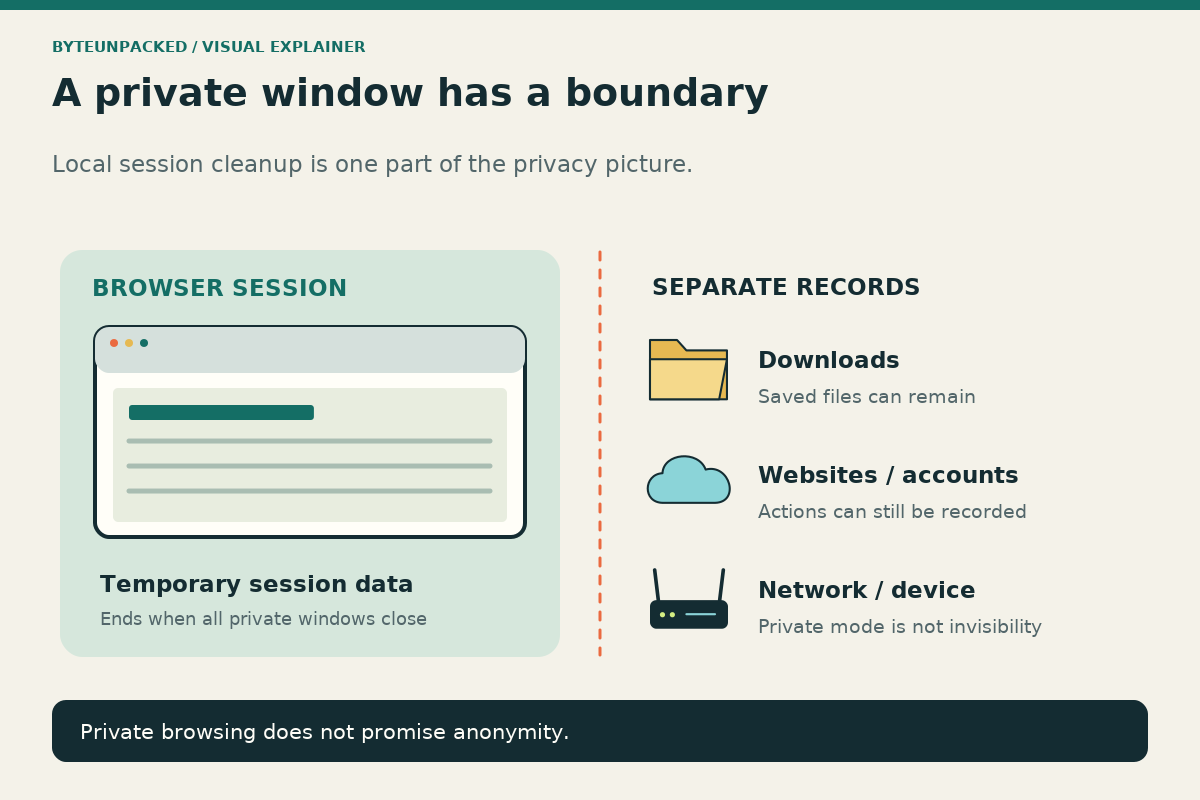
Google explains that Chrome creates a separate session when you open Incognito. Cookies and site data can exist during that session so websites work, but Chrome removes that temporary information when the session ends. Closing all Incognito windows is the relevant step. Opening another Incognito window while one remains open continues the same session, rather than guaranteeing another fresh start.
For a simple sign-in check, open a private window, visit the site directly, and note whether it asks you to authenticate. Close every Incognito window before repeating the check. This is a limited troubleshooting experiment: it helps distinguish your ordinary browser session from a temporary one. It does not prove what the website records on its servers or how it recognizes visitors.
Downloads and other people’s records can remain
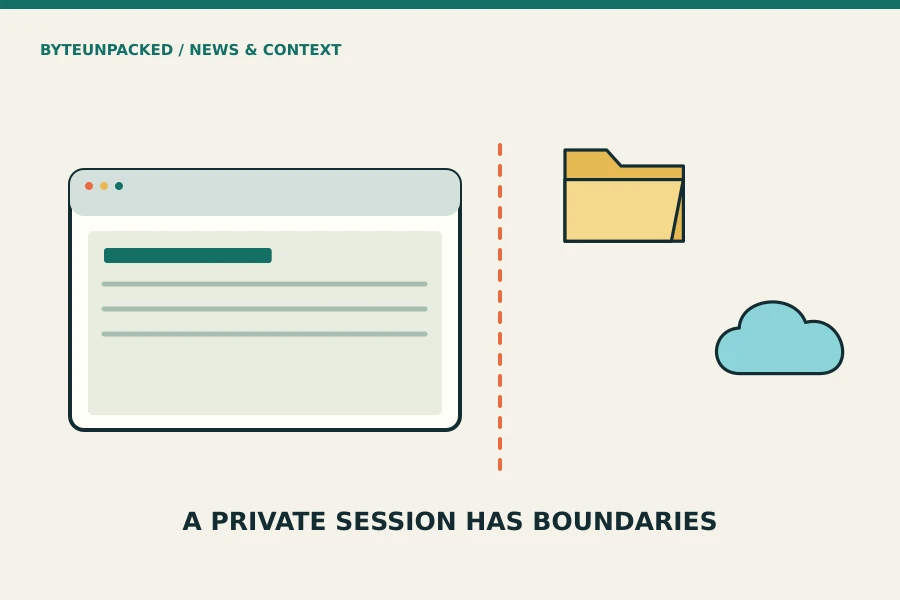
Chrome keeps files you download and bookmarks you create after you close Incognito. Firefox likewise keeps downloaded files and new bookmarks, even though files from the private session no longer appear in its Downloads list. A clean browser history therefore does not mean a clean Downloads folder. Think about the document, screenshot, receipt, or saved image itself before handing a shared computer back.
Mozilla also explains that signing in tells a website which account is being used. Private browsing cannot undo information you deliberately give that service. An order, uploaded document, or message should be treated as an action at the destination, not something that disappears when the window closes. If your goal concerns a service's stored data, inspect that service's account controls separately from the browser's history controls.
The device and network still matter
Mozilla states that Private Browsing does not conceal your IP address or make you anonymous. It also warns that the mode does not protect against spyware or keyloggers installed on a computer. A private window on an untrusted machine is consequently a poor basis for assuming a sensitive login is protected. The computer's condition remains relevant even when the browser intends to discard its session data.
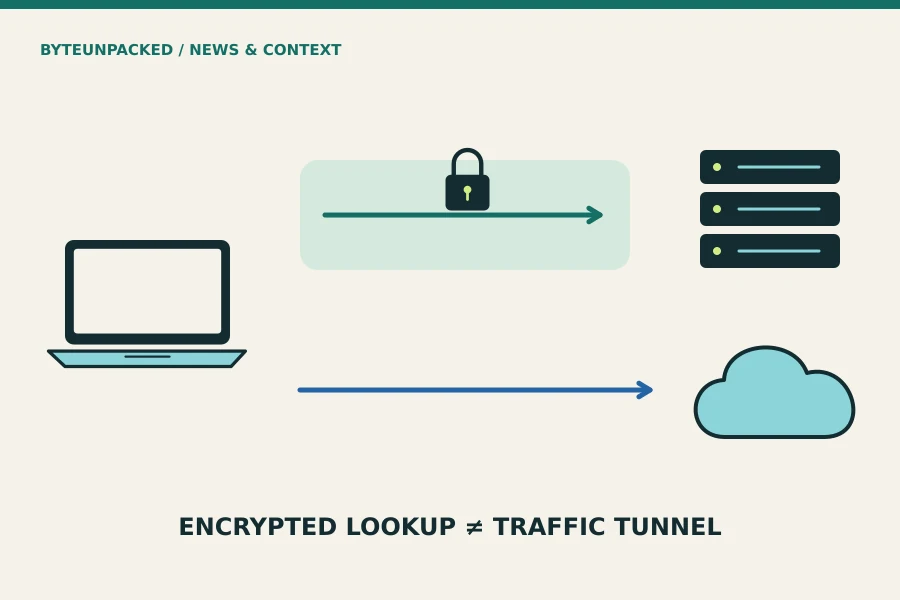
Google and Mozilla caution that websites and organizations managing your network may still observe activity. This is not a claim that every network operator automatically reads every page's contents: encryption, network configuration, and device management affect what is visible. The practical conclusion is narrower. Opening a private window does not by itself change those arrangements, and it does not override a workplace's device or network controls.
Check extensions, then close the whole session
Microsoft documents another boundary in Edge: extensions granted InPrivate access can run there, and Edge cannot prevent those extensions from saving browsing history. InPrivate also allows access to information from the existing profile, including favorites and saved passwords. A private window is therefore not necessarily a completely empty browser with no access to your usual profile information.
Use the mode for a clearly defined task and review what you saved outside the session. For a shared device, close all private windows when finished and check downloads and bookmarks you created. If an extension is unnecessary for the task, review its permission to run privately. These small checks match the feature's actual boundaries and are more useful than judging privacy from the window's dark color or icon.
- Identify whether your concern is browser history, a saved file, a website account, or network observation.
- Close every private window to end the session.
- Review downloads, bookmarks, and extensions separately.
- Treat actions performed while signed in as actions associated with that account.
Sources & further reading
This is a source-based explainer, prepared with AI assistance and checked against the references above. It is not a hands-on product test. Read our editorial approach.