In this article4 sections
Separate a permission error from the wrong device
A meeting page that says 'microphone blocked' needs a different investigation from a page that receives audio from the wrong microphone. Start by recording the message and checking the service's preview or device selector. Identify whether the problem affects the camera, microphone, or both. Do this before a live call when possible, so your troubleshooting does not unexpectedly broadcast sound or video.
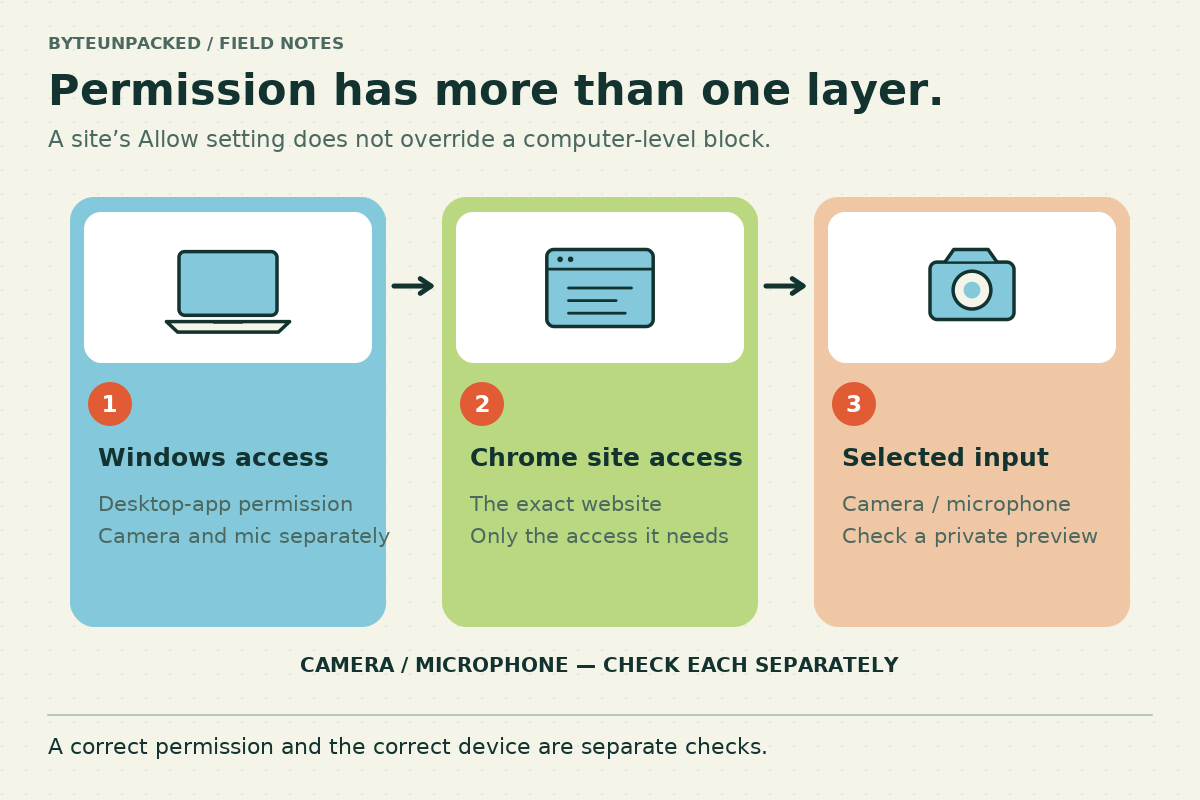
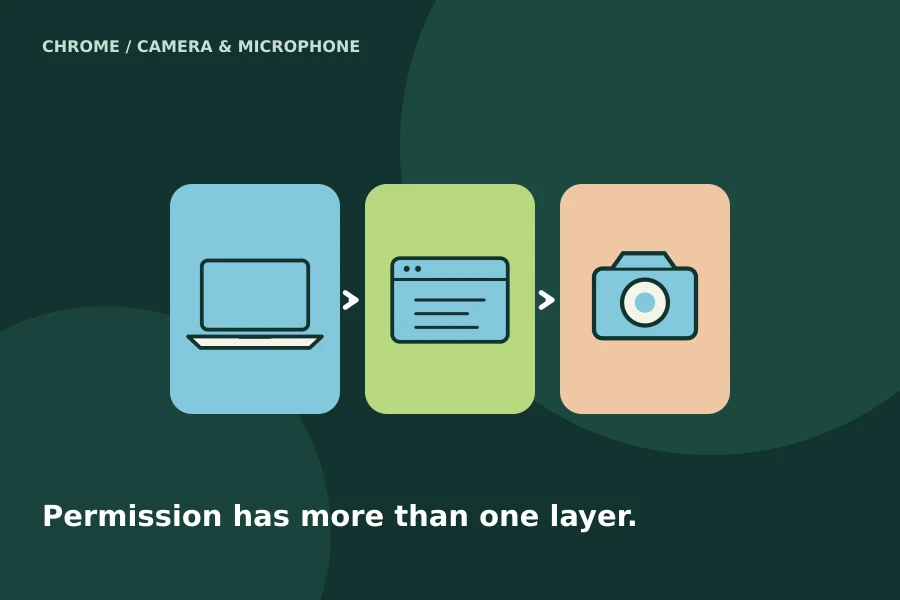
Google's Chrome guidance separates website access, computer settings, device selection, and mute controls. That gives you a useful order for checking the problem. A site can have permission while using an unwanted input, and an unmuted headset does not override a permission denied elsewhere. Treat each observation as one piece of the connection rather than proof that the whole setup works.
Our recommended comparison is narrow: keep the same computer, Chrome profile, website, and accessory while investigating the permission message. Swapping browsers and headsets at the same time may get you into a meeting, but it does not explain which part failed. If you need that workaround urgently, record what you changed and return to diagnosis after the call.

Check permission for the exact website in Chrome
Google documents a direct route for an individual site: open it, select the site-information control to the left of the address, and open Site settings. Inspect Camera and Microphone separately. A permission set for another service or another address does not establish that the page in front of you is allowed. Change only the permission required for the task you intend to perform.
You can also review camera and microphone permissions through Chrome Settings, Privacy and security, Site settings. Google describes both allowed and blocked site lists there. If you previously blocked this service, inspect its entry instead of waiting indefinitely for another prompt. Be deliberate about the website address; a familiar company name inside a page is not itself confirmation that you are on the right site.
Chrome offers one-time permission as well as permission while visiting a site, according to Google's current help. A one-time choice can be suitable for an occasional call, while a regularly used service may justify a lasting choice. Google also says Chrome removes permissions from sites you have not used recently. A new request therefore does not automatically mean that your camera or account has developed a fault.
Check Windows access for desktop applications
On Windows 11, open Settings, Privacy & security, then Camera or Microphone as appropriate. Microsoft's privacy guide distinguishes device access, app access, and desktop-app access. For a desktop browser, inspect the relevant 'Let desktop apps access your camera' or microphone control. Do not assume Chrome must appear with the same individual switch as a Microsoft Store application.
Microsoft says desktop applications cannot be individually controlled through those desktop-app toggles. Changing one affects the corresponding class of applications, so understand its scope before enabling it. Chrome's own site permission still matters afterward. The two layers serve different purposes: Windows controls supported access from desktop software, while the browser decides which website may use the feature within your browsing session.
Microsoft also notes limits to these privacy controls: some desktop software can access hardware in ways the settings do not govern. Do not treat the list as a complete audit of everything that has ever used the device. For this troubleshooting task, your goal is narrower: remove an unintended block for a browser you trust, then retain sensible restrictions on individual websites.
For a work or school computer, check whether a setting is managed before trying to change it. Google warns that administrators can control Chrome camera and microphone settings. Send IT the website address and exact error when a required permission is locked. An organization policy needs its authorized administrator, not a browser-reset workaround.
Retest with the intended camera and microphone
After permission changes, return to the service's preview and choose the intended devices. Check physical mute controls and the service's own mute state. Google also documents Chrome's default camera and microphone selectors, and recommends restarting the call or browser during troubleshooting. Save other work first and follow any operating-system prompt to quit Chrome after a privacy-setting change.
Test the result you actually need: the preview should show the correct camera, and the input indicator should respond to the microphone you intend to use. If permission is now granted but the preview still fails, record that change and investigate the device or service separately. Repeatedly widening permissions will not explain every hardware, connection, or application problem.
- Identify the exact website and error before changing access.
- Review Camera and Microphone as separate permissions.
- Check the Windows desktop-app control as well as Chrome's site setting.
- Use a private preview to verify the selected input before joining a call.
Related guide: understand a separate Bluetooth sound-quality change when the microphone activates.
Sources & further reading
This is a source-based guide, prepared with AI assistance and checked against the references above. It is not a hands-on product test. Read our editorial approach.