In this article5 sections
Keep the error message with the file details
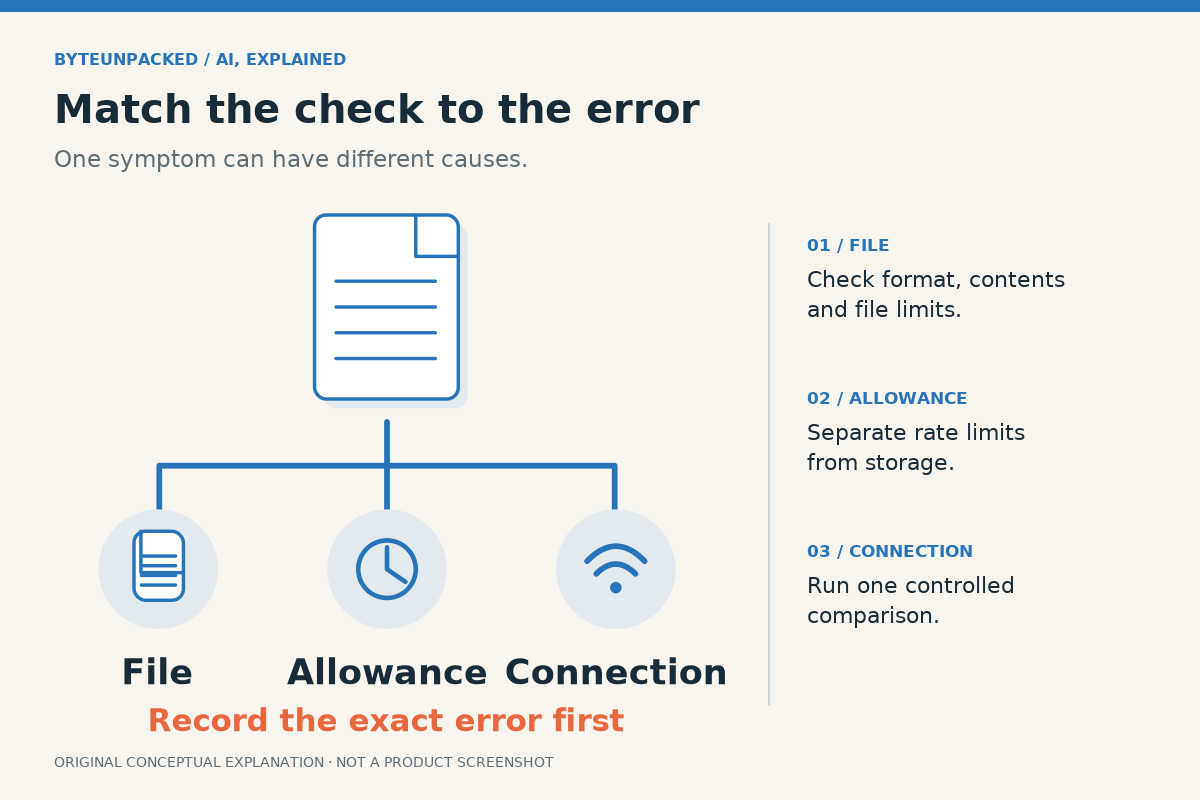
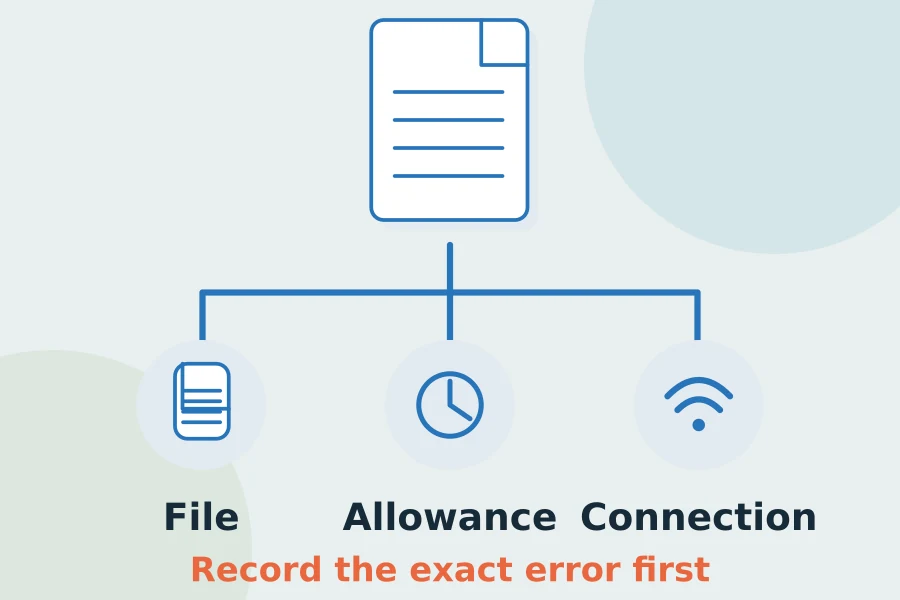
When ChatGPT rejects a file, pause before attaching it again. Record the exact error, the file's format and size, and whether you are using a normal chat, a project, or a custom GPT. These details help separate a problem with this particular upload from an account restriction. A missing attachment button is also a different symptom from a transfer that starts and then fails.
Check which account and workspace are open. OpenAI says upload availability can depend on account settings, subscription, client version, region, and selected model. A successful upload in another account does not establish that this account has the same allowance. Keep the original file on your device while you investigate, and use a harmless sample for comparisons where possible.

Check the file before changing the browser
Open the file locally and confirm that it contains the material you intended. Check the actual format, rather than changing its filename extension to resemble a supported type. OpenAI's upload documentation lists supported documents, spreadsheets, presentations, and audio formats. It specifically says a Google Docs shortcut file cannot be uploaded directly; export the document into a supported format first.
File limits are not one universal number. OpenAI distinguishes document size, document text length, spreadsheets, and images, while project and GPT collections can have their own file-count limits. Check the current upload guide for the type and destination you are using. Being smaller than the largest documented file limit does not establish that a spreadsheet or image meets its separate restriction.
If a reduced copy is appropriate, export only the pages or rows needed for the task and give that copy a clear name. Inspect it before uploading: a smaller document that omits an essential table may solve the transfer problem while making the requested analysis impossible. Keep sensitive information out of diagnostic samples.
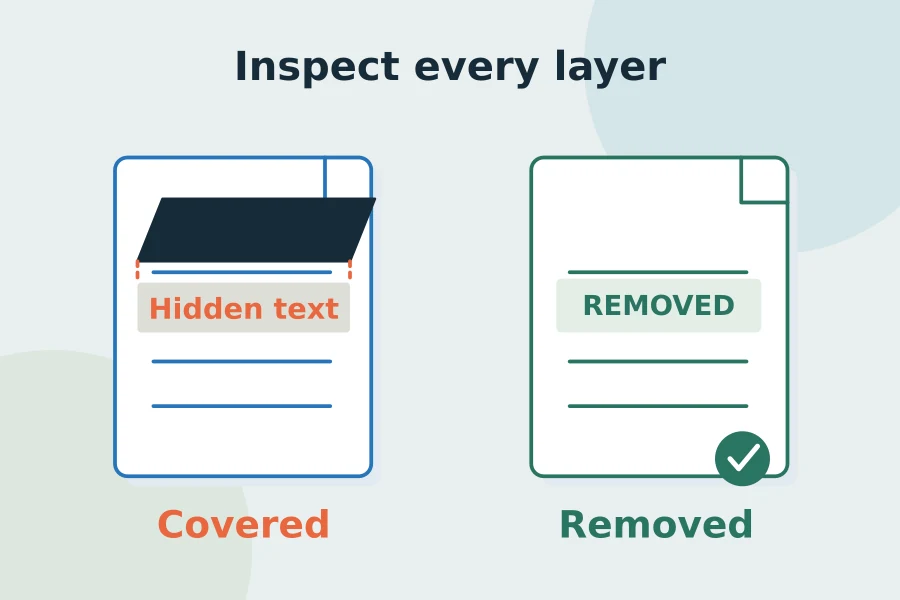
Related guide: check what PDF redaction actually removed.
Separate upload rate from saved storage
An upload-limit message deserves a different response from an unsupported-file message. OpenAI distinguishes a rolling upload allowance from saved-file storage. If the message provides a retry time, wait for that time. The documentation notes that unsuccessful attempts can sometimes use the upload allowance, so repeatedly submitting the same file can make the diagnosis harder.
Check saved-file usage under Settings, then Storage, where available. That storage view is not a counter for the remaining rolling upload allowance. Do not assume that deleting a conversation resets a rate limit. If storage needs attention, review the relevant saved files deliberately and keep copies of anything you still need; deletion is not a general-purpose upload repair.
Run one controlled connection comparison
Check OpenAI Status for a reported incident before making broad changes to your setup. A relevant incident can explain why several files fail at once, although an apparently healthy status page does not prove that your individual session is working. Note the time so you can compare your experience with any incident updates.
For a generic error, OpenAI's troubleshooting guide suggests refreshing, starting another chat, or trying a private window or different browser. Choose one comparison and use the same small test file. If it works there, compare extensions and browser settings in the original session. On a managed device, ask your administrator about blocked connections instead of disabling organizational protections.
Escalate with evidence, then check the result
If the error persists, send OpenAI Support the message, screenshot, timestamp and time zone, account details, platform or browser, and request identifier when available. Describe which controlled comparison succeeded or failed. Do not include the confidential document merely to demonstrate that an upload failed unless an appropriate support process specifically requires it.
After a successful attachment, confirm that you supplied the intended version. Ask a narrow question about a known section before requesting a long analysis. Getting the file through is one checkpoint; whether the answer accurately uses its contents is the next.
- Record the error before retrying.
- Check the file type and the limit for its destination.
- Respect a displayed retry time and check service status.
- Compare one browser or connection change, then report the result.
Sources & further reading
This is a source-based guide, prepared with AI assistance and checked against the references above. It is not a hands-on product test. Read our editorial approach.