In this article4 sections
Start with the OneDrive cloud icon
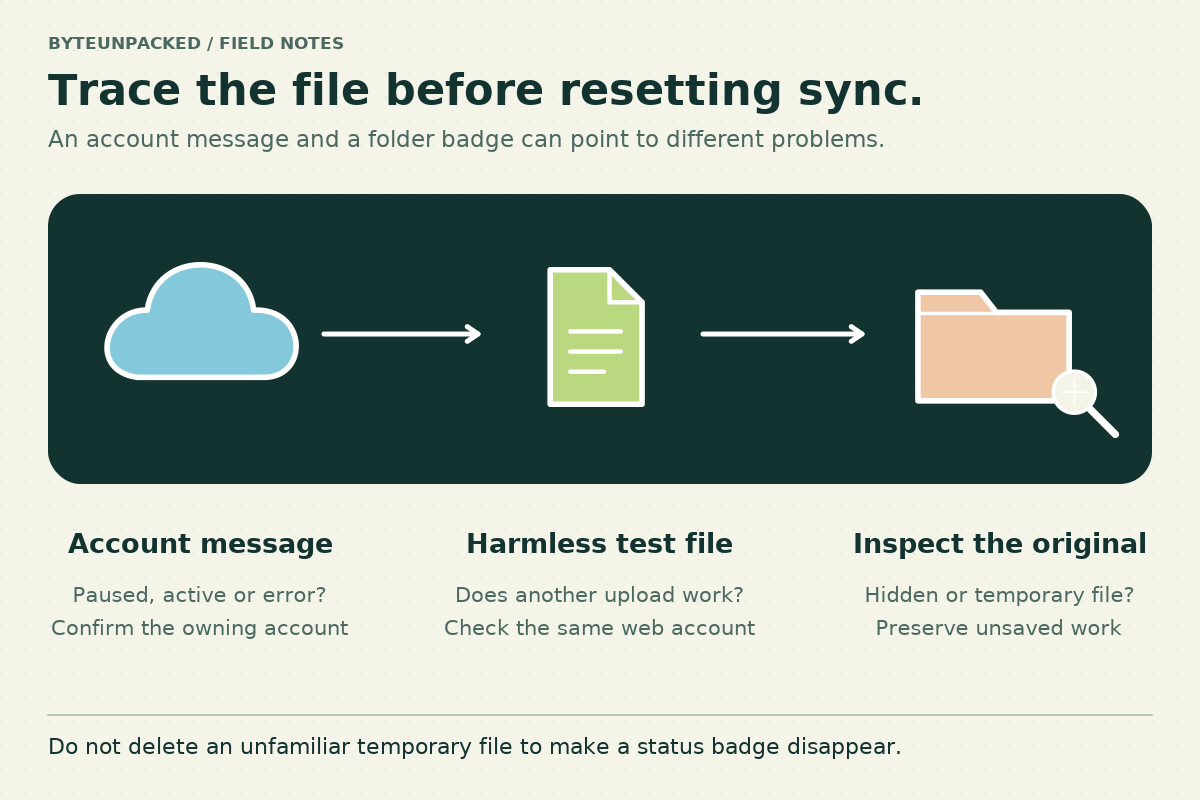
Select the OneDrive cloud icon in the Windows notification area and read the activity message. Write down the account and the exact status, then compare it with the folder that concerns you in File Explorer. If you use both personal and work accounts, make sure the panel you opened belongs to that folder before following any repair instructions.
Microsoft's icon guide distinguishes several states: a pause symbol means syncing has stopped, a red cross indicates a sync problem, and a warning symbol asks you to inspect an account message. Circular arrows indicate activity and can remain visible while changes are processed. These observations call for different checks, even when your practical complaint is simply that a file has not arrived.
The blue cloud beside a file describes online-only availability. It is not the same symbol as a sync error. If your main question is whether a file takes up local storage, use the separate Files On-Demand guide. For this investigation, focus on a particular change that has not reached the expected destination.
Related guide: Free up PC space without deleting OneDrive files.

Resume a paused account, then observe one change
If OneDrive explicitly says it is paused, select Resume syncing in the relevant account's panel. Microsoft's pause-and-resume guide describes a separate pause control and temporary pause periods. Resuming addresses that state; it does not establish that a named file error has also been resolved. Reopen the activity panel afterward and read any remaining message.
Our suggested test is a small, unimportant document saved into a folder you already expect this account to sync. Give it an identifiable name and check the same account on the web. Avoid using a document with unfinished work or sensitive information for the experiment. The purpose is to distinguish a general inability to sync from a problem limited to an existing item.
If the test appears online while the original file remains pending, concentrate on the original file and its application. If neither arrives, record that result alongside the account message. Keep the test simple: changing accounts, moving folders, and restarting several applications together would make it harder to tell which change mattered.
Inspect the affected folder and temporary files
Microsoft's Sync pending article notes that a hidden file can explain a folder's pending state when the obvious files look normal. Use File Explorer's hidden-item display option to inspect the folder, and record what you find. Showing hidden items is an inspection step, not a request to remove unfamiliar files. Restore your preferred display afterward.
Pay particular attention to whether the file belongs to an application that still has work open. Microsoft warns that temporary files can protect unsaved work and that moving, renaming, or deleting them may prevent the original program from using them. Do not treat a .TMP extension as proof that a file is safe to discard.
Save work through its application and close it normally before reassessing the pending state. If you cannot identify a temporary file's owner or whether it contains needed work, preserve it and seek help. The support article includes more invasive remedies for particular cases, but an unexplained folder badge is not enough evidence to choose one.
Escalate with a specific symptom and a protected original
For a persistent taskbar-level pending message, Microsoft also points to Office Document Cache troubleshooting. Treat that as a specific branch to investigate, particularly when Office documents are involved. Do not clear caches as a general cleanup ritual. First identify which document is affected, whether its latest work was saved, and which copy contains the changes you need.
Before any later repair that moves or replaces files, make a separate copy of the current local work outside the syncing folder, leave the original in place, and confirm that the copy opens. This is our precaution for troubleshooting, not a claim that OneDrive has already uploaded it. If an online-only item cannot be opened, do not assume its placeholder is an independent backup.
For a work or school account, take the account message and test result to your organization's IT team. For a personal account, use Microsoft's support path. Report whether the issue affects one file, one folder, or every test upload, and include the exact status. That evidence makes the next step more targeted than repeatedly resetting a client that has not yet been diagnosed.
- Read the activity message for the account owning the affected folder.
- Resume only if the account is actually paused.
- Use a harmless test document to check whether other uploads work.
- Inspect hidden or temporary files without deleting unknown work.
Sources & further reading
This is a source-based guide, prepared with AI assistance and checked against the references above. It is not a hands-on product test. Read our editorial approach.