In this article5 sections
First, identify which storage is full
A laptop running out of disk space and a OneDrive account running out of cloud storage are two different problems. Before changing anything, write down which warning you are seeing. In Windows, look at the space available on the affected drive. Separately, check your OneDrive storage allowance in the account you actually use. Do not assume that a cleanup in one place will solve both warnings.
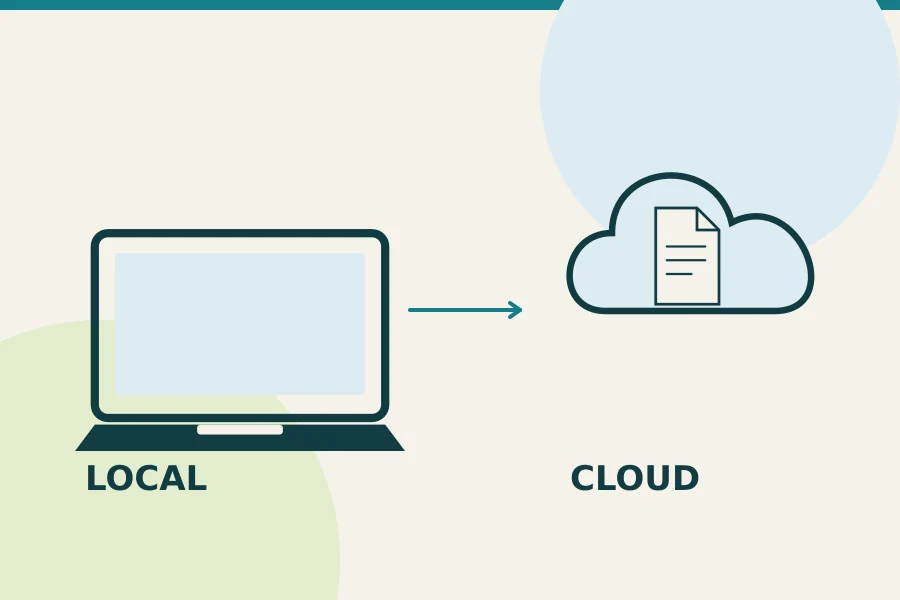
This guide addresses a specific goal: retaining files in OneDrive while reducing their local footprint on a Windows PC. It is not a method for reducing the amount stored in your cloud account. Pick a small, nonessential folder for your first attempt, rather than starting with your entire Documents collection. A controlled change is easier to understand and reverse.

Confirm the file belongs to the right OneDrive
Open File Explorer and inspect the folder location and account label. Personal and work accounts can appear beside each other. A familiar filename on the desktop does not establish which account contains it or whether its latest changes have synchronized. If OneDrive shows a pending upload or an error, resolve that before treating the cloud copy as current.
Our recommended check is to open OneDrive in a browser, sign in to the matching account, and find the same test file. Check its contents and modification information. This is a practical confirmation of that file at that moment, not proof that every item in a large folder has synchronized. Keep an independent backup of irreplaceable material.
Microsoft distinguishes keeping a file in OneDrive from deleting it through the synchronized folder. Its deletion guidance directs users who want cloud retention without a local download toward Files On-Demand. It also offers folder-selection controls for deciding which OneDrive folders appear on a computer. Visibility, local availability, and deletion are separate choices.
Choose online-only instead of Delete
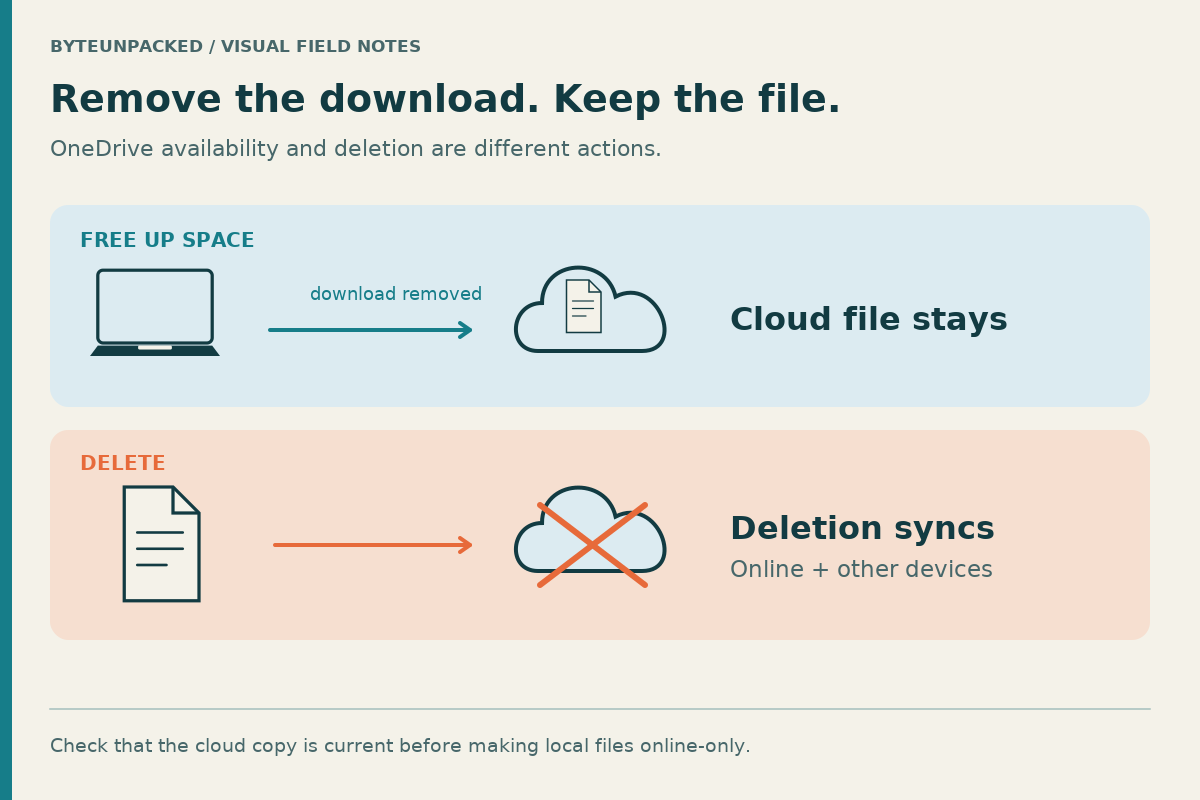
In File Explorer, right-click the downloaded OneDrive file or folder and choose Free up space. Microsoft documents this as the way to return locally available files to online-only status. The cloud icon indicates online-only availability; opening such a file requires an internet connection and downloads it again.
Do not press Delete as a substitute. Microsoft states that deleting an online-only OneDrive file also deletes it online and on other synchronized devices. The visible entry is still part of your cloud collection even when the full contents are not stored locally. Removing that entry is not merely clearing a download.
After your small trial, confirm that the file remains visible in the browser and check the PC’s available space. Avoid opening the file locally just to inspect whether the download was removed: that action can download it again. If the expected menu is missing, consult the linked Files On-Demand instructions for your installed OneDrive version rather than improvising with deletion.
Keep an intentional offline working set
Some files need to travel with you. Microsoft provides Always keep on this device for files that should remain available offline. Select the documents needed for an upcoming trip or appointment and allow their downloads to finish while the connection is reliable. A folder name that remains visible in Explorer is not enough to establish offline readiness.
Our suggested test is simple: close the relevant application, temporarily disconnect from the network, and open a nonessential representative document you intentionally kept locally. Reconnect afterward. This checks your intended workflow without deleting anything. Include associated files if a project depends on more than one document, such as linked images or supporting spreadsheets.
Keep that offline selection modest and review it after the trip. Otherwise, repeatedly marking whole collections for local retention can recreate the original storage problem. Think in terms of a working set you need now and an archive you can retrieve when connected, rather than forcing the same availability choice onto everything.
Review Windows cleanup separately
If the drive is still crowded, open Settings, System, Storage and review the categories Windows identifies. Microsoft documents Cleanup recommendations for reviewing temporary files, large or unused files, and unused applications. Inspect selections before accepting them. Files On-Demand addresses downloaded cloud content; another category may account for most of your actual disk usage.
Be especially deliberate with previous Windows installations. Microsoft warns that removing the Windows.old installation files removes the option to return to that previous version through that route. A large space saving can therefore have a consequence unrelated to OneDrive. Choose cleanup actions by their purpose, not simply by the largest number shown.
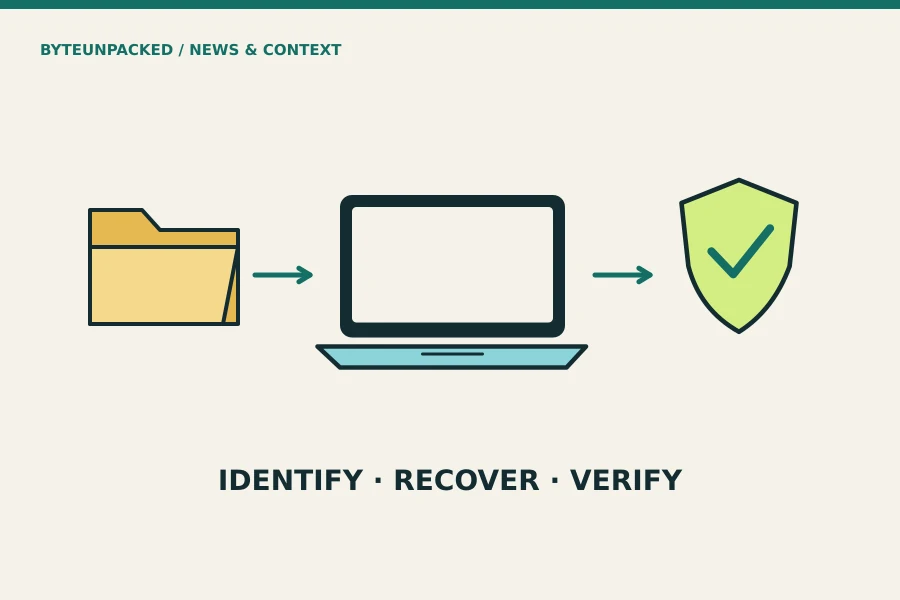
- Identify whether the shortage is on the PC, in OneDrive, or both.
- Confirm the account and cloud copy before changing availability.
- Use Free up space for local downloads you want to retain online.
- Keep and test the files you need offline.
- Review other Windows cleanup categories as separate decisions.
Sources & further reading
This is a source-based guide, prepared with AI assistance and checked against the references above. It is not a hands-on product test. Read our editorial approach.