In this article5 sections
A photo carries more than its visible picture
A photo can contain information about when and where it was taken, the device, and camera settings. Location coordinates may be embedded alongside the image. Apple’s personal-safety guidance explains that recipients can sometimes access this location metadata when a photo or video is shared. Before posting a picture of something at home, it is worth checking what travels with it.
EXIF is one metadata format, not a synonym for every piece of information associated with a photo. ExifTool’s documentation lists EXIF, IPTC, XMP, and other supported formats. For a practical privacy check, focus on the information you want to withhold rather than assuming one file-format label describes everything.
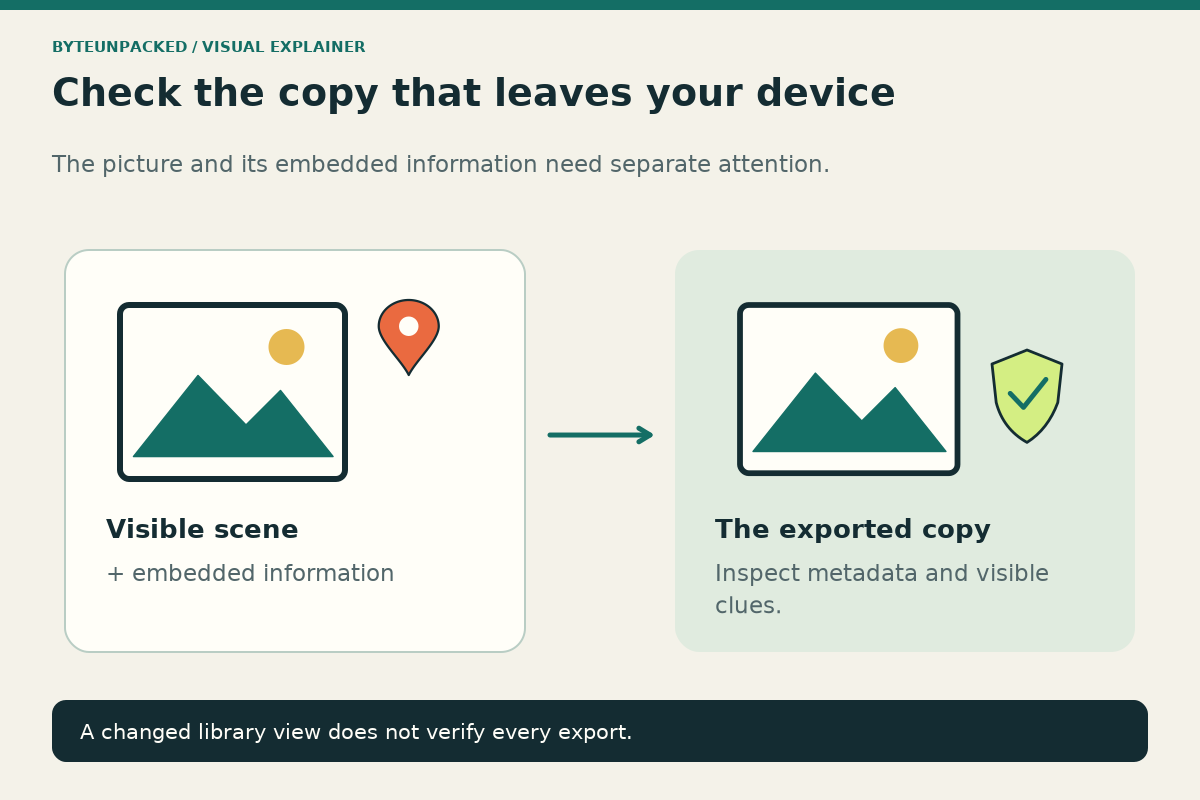
Keep three items separate: the original in your library, the copy prepared for sharing, and any location or caption shown by the destination service. Your decision concerns what the recipient can get from the actual share. An adjustment to one of these items does not by itself demonstrate what happened to the others.

Inspect the original before changing the share
On an iPhone, Apple documents opening the photo in Photos and swiping up or tapping Info. Depending on the file, the panel can show the capture date, device, camera details, and location. Review it before exporting so you know which fields need attention. No map in one interface is a useful observation, but it is not a complete audit of every possible metadata field.
Apple also allows some stored information to be adjusted and later reverted. That is a reason to distinguish the library view from a permanent change to every original file or every future export. For a sensitive image, use a clearly named sharing copy and keep the original separate if you still need it for your own records.
Decide whether your goal is to withhold location only or additional details too. A date, caption, or device name might matter in a particular context. Make that decision before selecting a sharing mode; otherwise it is easy to remove one field and overlook another.
Use the controls for the exact sharing route
Apple’s location guidance describes Share, Options, then turning Location off before completing the share. It also documents removing a saved location through Adjust Info, Adjust Location, and No Location. Menu labels can vary by software version, so check the current instructions for your device. Disabling Camera access to Location Services addresses future collection, rather than proving existing photos have been cleaned.
The general iPhone sharing guide explains that All Photos Data sends the original with metadata and edit history through AirDrop. That option serves a different purpose from sending a deliberately limited copy. Review it when your aim is to reduce the information a recipient receives, especially if you have been using AirDrop for full-quality archival transfers.
Google’s photo-location guidance likewise distinguishes sharing inside Google Photos from downloading a file and emailing it. Its sharing controls do not automatically govern an outside copy. The practical implication is to verify the attachment or exported image, not just the location-sharing setting in an album.
A screenshot still needs its own review
A screenshot should be treated as another candidate sharing file, not as a universal certificate that nothing identifying remains. Even when you avoid sending the original photograph, the picture can visibly contain an address label, a recognizable doorway, a map, a reflection, or a notification. Inspect the image at readable size before sending it.
If the purpose is to show a product fault, frame only the fault and the surrounding detail needed to understand it. If a full screen is unnecessary, avoid including account names or unrelated messages. These are editorial checks on the visible content, separate from inspecting embedded metadata.
Do not rely on an unsupported rule that every screenshot, messaging app, or social network always removes every field. Software and sharing routes differ. Apply the same copy-level check to a screenshot as to any other file, particularly when you switch from an ordinary image share to an original-file attachment.
Verify the exported file before the real send
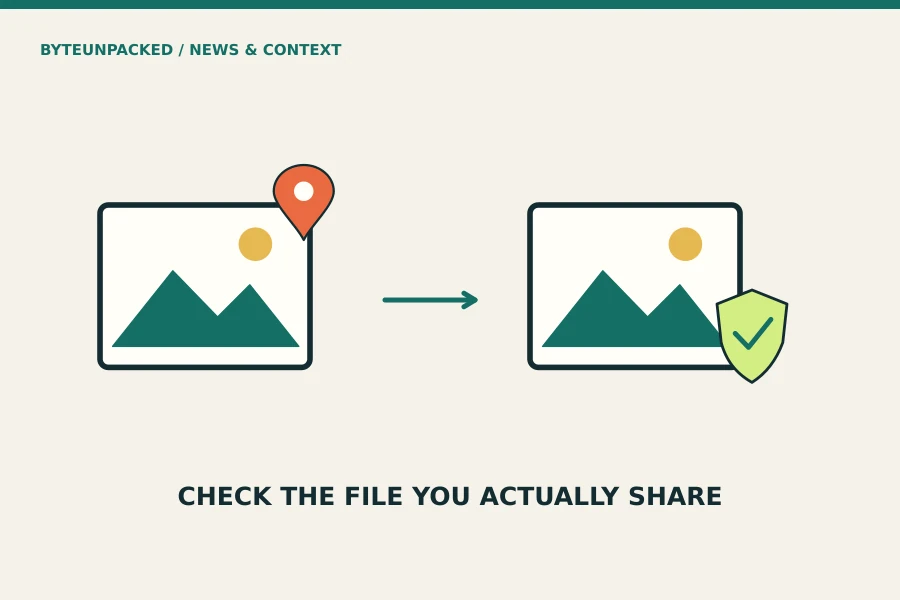
Create a harmless test export using the same route and options you plan to use. Open that resulting file locally and inspect its information. For a more detailed review on a computer, ExifTool documents the read-only command exiftool -a -u -g1 a.jpg. Replace a.jpg with the sharing copy’s filename; the command displays metadata, including duplicate and unknown tags, grouped for inspection.
Check for GPS fields and any other information you intended to remove. Treat the output as evidence about that particular file, not a guarantee about a different attachment or an online service’s own records. Avoid uploading a private original to an unfamiliar inspection website merely to check it.
Finally, confirm the attachment name and preview at the send step. Choosing the original by accident can undo careful preparation.
- Inspect the original and decide which information to withhold.
- Use the intended sharing route’s location and original-data controls.
- Check the actual exported copy and its visible content.
- Attach the verified copy, and repeat the check if the route changes.
Sources & further reading
This is a source-based explainer, prepared with AI assistance and checked against the references above. It is not a hands-on product test. Read our editorial approach.