In this article5 sections
Find one change you can recognize
You correct a date in a document, return to your notebook, and still see the old date. First identify where the old version appears: inside the source viewer, in a new chat response, or in an output generated earlier. Those observations point to different checks. Repeating the same question without inspecting the source can leave the underlying problem untouched.
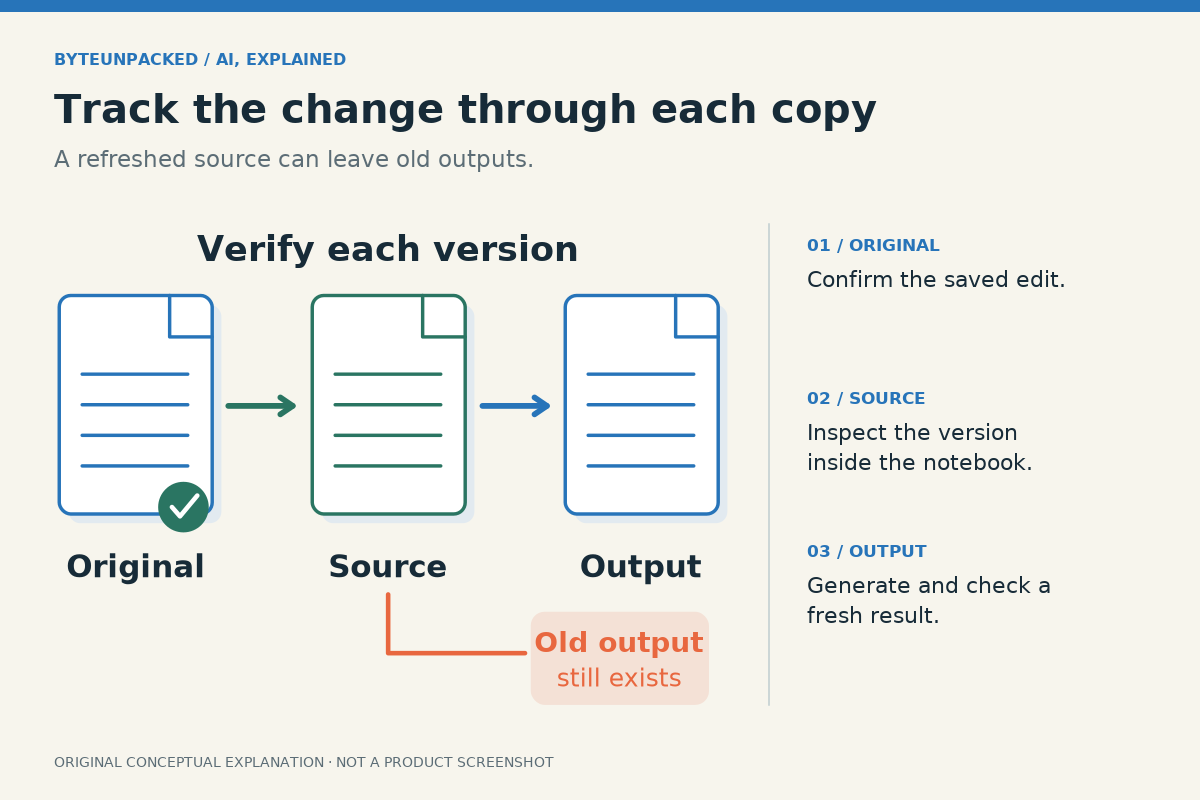
Choose one distinctive, harmless change to track, such as a revised section heading. Open the original document and confirm that the change has been saved in the correct file. Then open the corresponding source inside the notebook and look for that text. Record the source name and import method so that a similarly named duplicate does not confuse the comparison.

Check which source behavior applies
Google's source documentation currently uses the name Gemini Notebook, while older NotebookLM help pages remain available. The current guide describes automatic updating for imported Google Drive files, with synchronization every few minutes and updates when you open the notebook. It also describes a manual sync control in the source viewer. Do not assume that every source is a permanently frozen copy because an older tutorial says so.
There is a real documentation difference to watch: the older NotebookLM FAQ describes manually refreshing Docs and Slides and re-uploading local files. Check the source type and controls shown in your account, then use the current source guide. A file uploaded from your computer is not the same connection as selecting a supported file through Google Drive, even when both originally came from the same document.
For an imported Drive source, open the notebook, allow the documented synchronization interval, and inspect the source again. If the manual sync control is available, use it and recheck your distinctive text. Avoid promising yourself an exact completion deadline: a documented interval does not diagnose a stalled import or an access problem.
Verify access and replace snapshots carefully
Open the original Drive file with the same Google account you use for the notebook. Google's current guide says losing access to an imported Drive file, or deletion of that file, can make the notebook source inaccessible. A source still appearing in the list therefore does not establish that its contents remain available to the model. Resolve an access request with the owner rather than creating unnecessary public sharing permissions.
For a local upload that still contains the old text, prepare a new export and inspect it on your computer. Google's older FAQ specifically directs users to re-upload local files to reflect changes. Give the replacement a recognizable version name. After confirming that it imported correctly, select the current version for your questions and exclude the obsolete copy.
Do not delete the entire notebook to replace one source. Keep the original document and any outputs you still need. If you later remove an obsolete source, do so deliberately after checking that the replacement contains the necessary material.
Ask a fresh question against the right source
Google documents source checkboxes for choosing which material a chat response should use. Select the updated source and ask a narrow question about the exact changed detail. If the notebook also holds an older export or a separate report repeating the old information, exclude those sources for this diagnostic question. This makes the comparison easier to interpret.
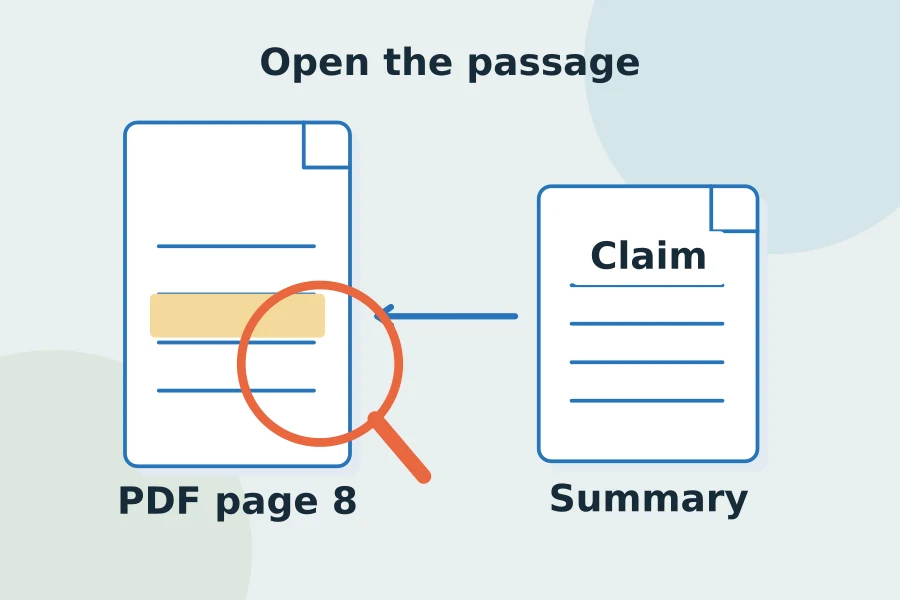
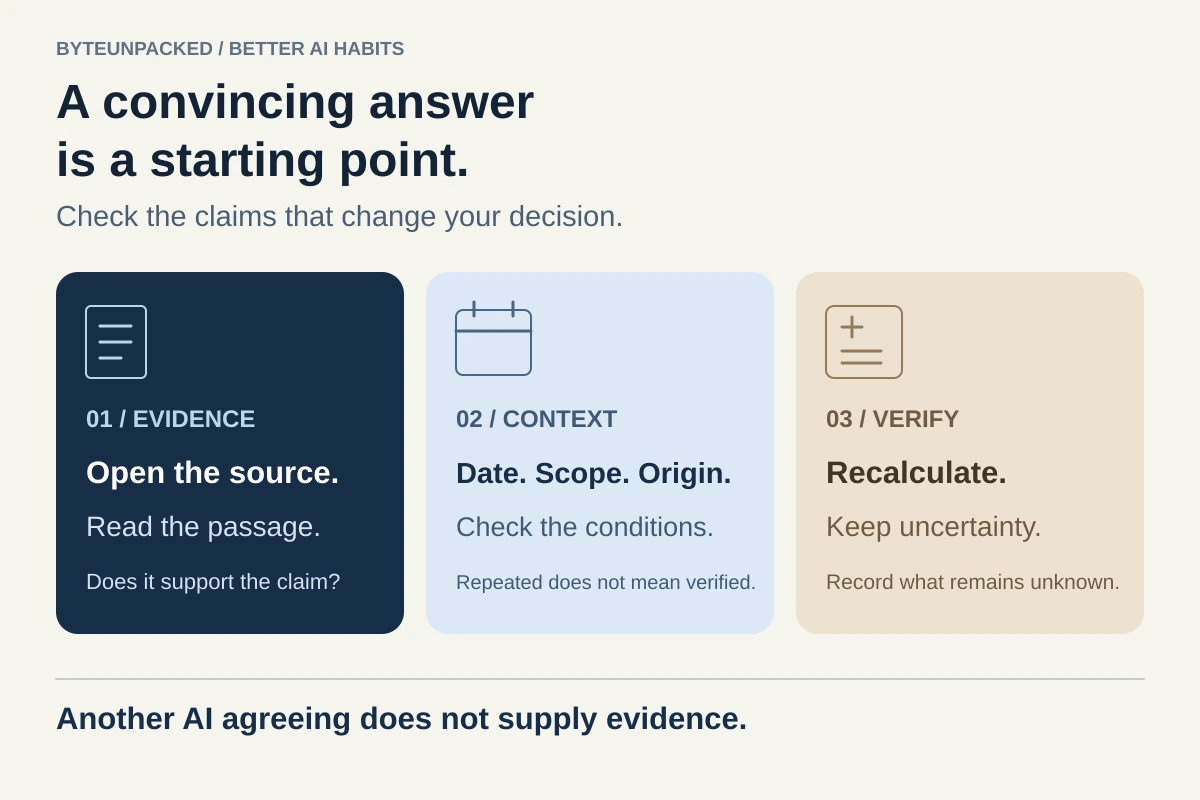
Open the response's citation and inspect the supporting passage in context. The useful test is whether the cited source contains the new wording and whether the answer represents it correctly. A confident answer without that check cannot tell you whether synchronization succeeded. If the source is current but the answer is wrong, describe the specific mismatch rather than continuing to troubleshoot the upload.
Related guide: keep AI document summaries checkable against their sources.
Recreate outputs that need the new version
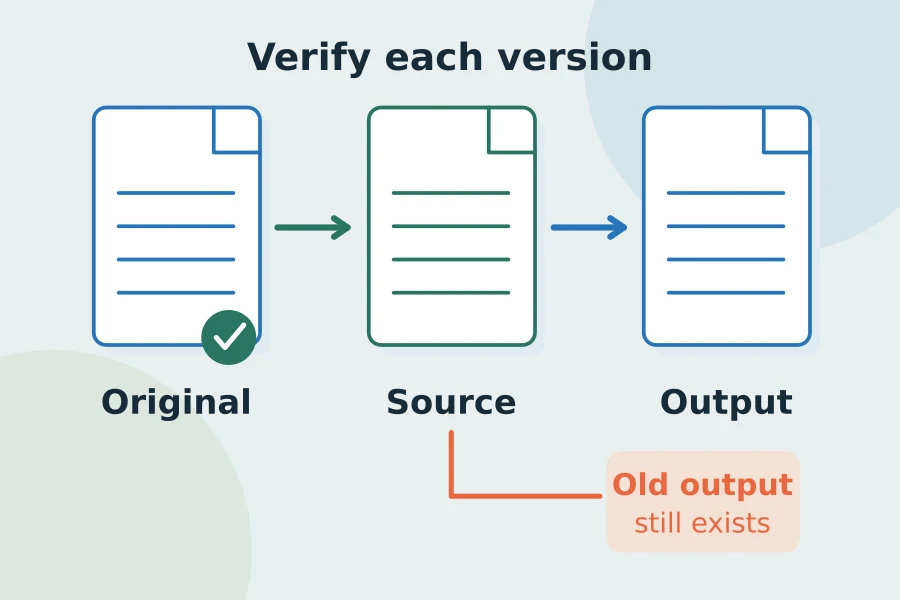
A refreshed source does not make every earlier output current. Google's current source guide states that updating or deleting a source does not change Studio outputs already generated from it. If an earlier overview or other output must reflect the correction, generate a new version and inspect the changed detail before sharing it.
Our suggested record is simple: original file, source version checked, date of verification, and output regenerated. That gives the next reader a clear reference and helps you distinguish a stale output from a source that never updated.
- Confirm the change in the original file and the notebook source.
- Distinguish Drive synchronization from a local upload.
- Use selected sources and a fresh question to check the correction.
- Recreate earlier outputs when they need the updated information.
Sources & further reading
This is a source-based guide, prepared with AI assistance and checked against the references above. It is not a hands-on product test. Read our editorial approach.