In this article5 sections
Decide what visitors actually need
Most visitors need an internet connection, not access to your computer, storage server, or router settings. Start with that distinction when configuring guest Wi-Fi. Write down any deliberate exception, such as a printer or television they should be able to use. That gives you a concrete outcome to check instead of assuming the word guest describes one universal protection.
Use a different network name and password from your main Wi-Fi. Google’s guest-network instructions explicitly call for different credentials. This lets you share visitor access without distributing the password used by your regular devices. Keep router-administration credentials separate from both Wi-Fi passwords.
Before making changes, identify the exact router or mesh model and its operating mode. Keep access to its management interface from a trusted device. Change one setting at a time, so a lost connection or broken printing workflow does not leave you guessing which adjustment caused it.

Separate main-network access from guest-to-guest access
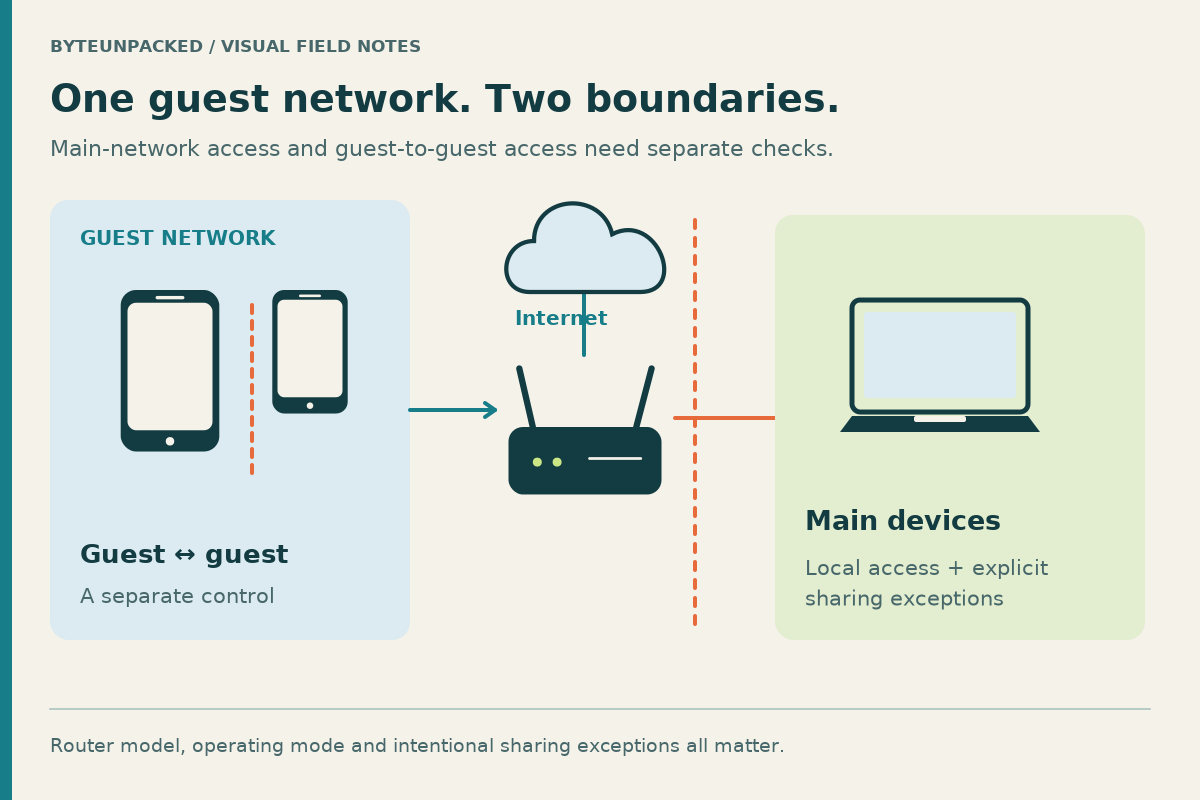
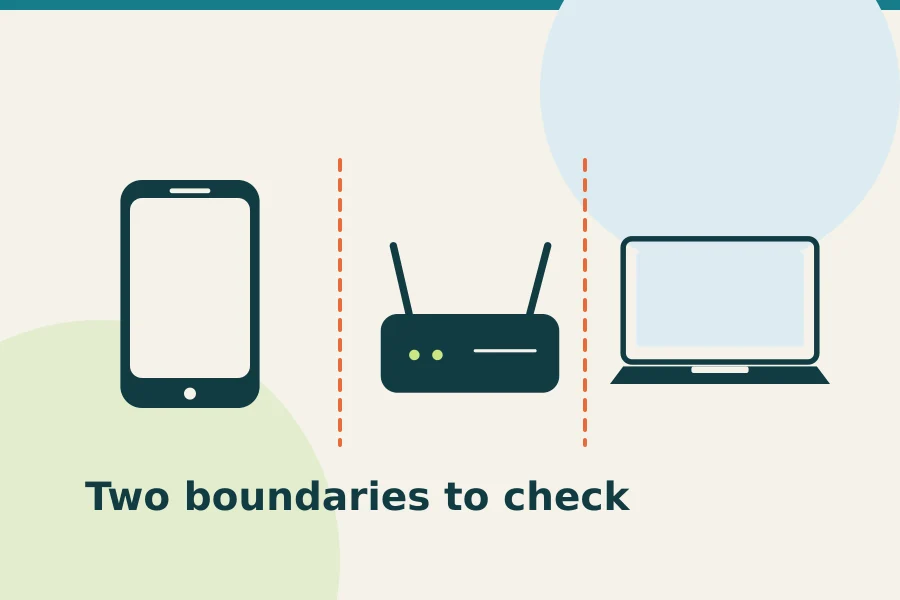
TP-Link documents two distinct controls on supported routers: whether guests may communicate with each other, and whether they may reach devices on the main wireless network or wired LAN. One switch does not answer both questions. Read the descriptions for your particular hardware and firmware rather than relying on a similar-looking screenshot.
If the goal is internet-only visitor access, our suggested starting point is to disable access to the local network and disable communication between guests where the product supports those controls. Then consider any exception deliberately. A visitor who needs a shared printer and a visitor who needs only web access represent different requirements.
The same distinction matters when placing connected appliances on a guest network. A device might need communication with its controller or other equipment. Do not move every appliance at once and then weaken isolation globally when one fails. Try a single nonessential device, record its needs, and consult the manufacturer’s connection requirements.
Look for operating-mode limits and deliberate exceptions
ASUS states that the internal-network restriction described in its guest-network FAQ works in wireless router mode. It also distinguishes Guest Network, Guest Network Pro, and Self-Defined Network features by product. A device operating as an access point should not be assumed to enforce the same restrictions described for router mode.
This is a reason to inspect the whole setup. An internet provider’s router, a separate mesh system, and an extra access point can serve different roles. Record which unit creates the guest network and where its access policy is configured. Do not infer isolation from the appearance of a second Wi-Fi name alone.
Google Nest Wifi and Google Wifi take an explicit sharing approach: their guest-network setup allows selected shared devices, such as a printer or streaming device. Review that selection when setting up the network and after replacing household equipment. If a television is reachable because you deliberately shared it, that is a configured exception, not necessarily evidence of a failed guest boundary.
Test a specific boundary with your own devices
Our practical check uses a phone or laptop you control and a harmless service on your main network, such as your own printer’s status page. First confirm that the chosen service works from the main network. Note its local address. Then join the guest network, verify the displayed network name, and test internet access separately from that local service.
Use only your own equipment and a read-only check. On a phone, temporarily disabling mobile data can help ensure the internet test is actually using Wi-Fi. Avoid using a vendor’s cloud app as the only isolation test: remote account access answers a different question from direct communication across your local networks.
A successful local connection from the guest network deserves investigation if you intended to block it. A failed connection is useful evidence for that one path, but it does not certify every protocol or device. The destination’s own firewall or service settings could also reject the attempt. Pair the observation with the documented router settings rather than treating one failed ping as a complete security audit.
Keep the network understandable over time
Check the configuration again after changing operating mode, replacing a router, or making a substantial network change. Keep a brief note of the intended exceptions and the date of your last check. This avoids a common maintenance problem: an access setting enabled temporarily for a party remains enabled months later, after everyone has forgotten why.
A guest network also does not solve every problem involving visitors or shared devices. Someone physically near a smart speaker may interact with it independently of which Wi-Fi network their phone uses. Keep your expectations tied to the network boundary you configured and the devices you intentionally shared.
- Give guests distinct Wi-Fi credentials.
- Check local-network access and guest-to-guest access separately.
- Verify the restrictions apply in the current operating mode.
- Review any shared printer or streaming-device exceptions.
- Test one known local service and document what the result actually establishes.
Sources & further reading
This is a source-based guide, prepared with AI assistance and checked against the references above. It is not a hands-on product test. Read our editorial approach.