In this article5 sections
Start with the connection you want to improve
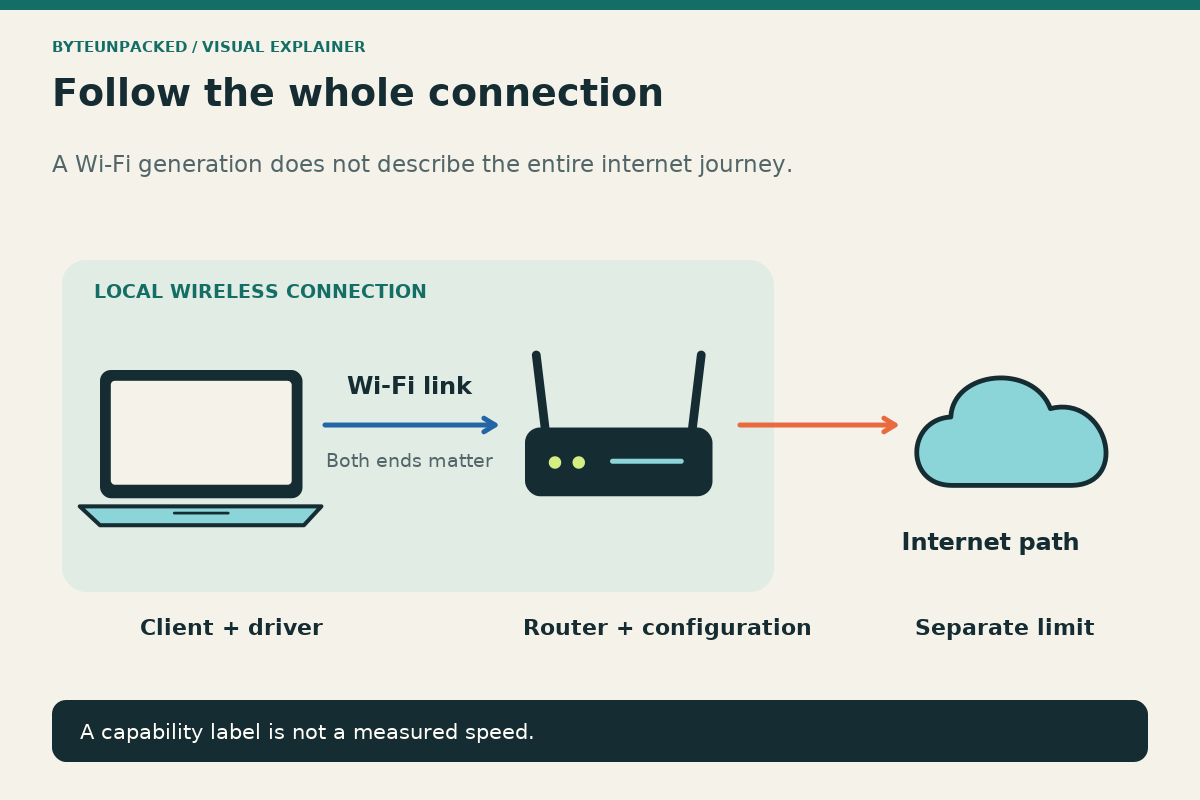
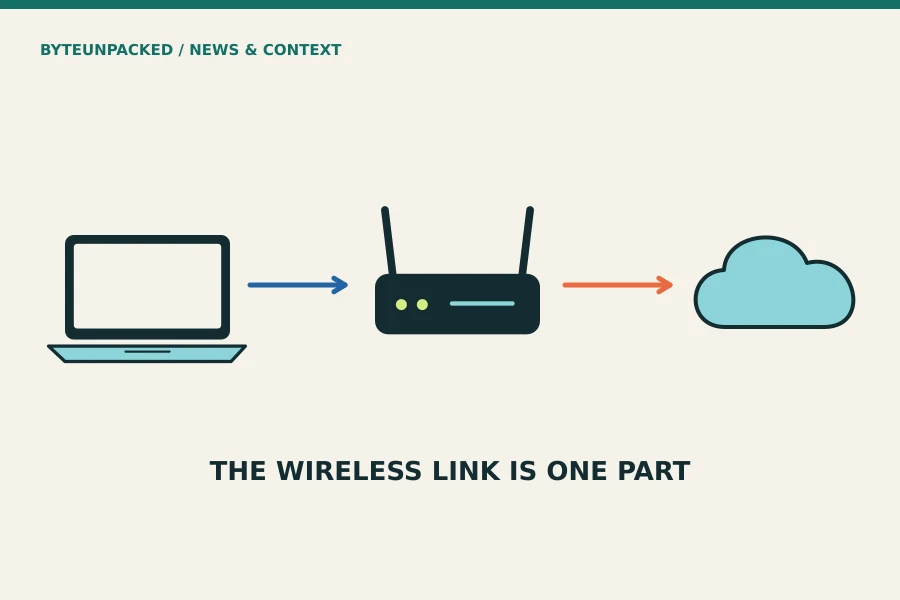
A laptop connected to a router and a router connected to the internet are two different parts of a journey. Wi-Fi 7 concerns the wireless part. Replacing that part does not change the internet plan, the remote server, or every other component carrying your traffic. First decide whether the problem is a slow internet download, a transfer within your home, or an unreliable connection in one room.
Google's documentation illustrates the distinction with its router speed test: it measures traffic between the router and Google's servers. A test running on your laptop includes the laptop's connection too. Google also notes that results vary with congestion, location, and time. Comparing those measurements can help identify where to investigate; a single number cannot certify the whole network.

Both ends need compatible hardware
Microsoft identifies Wi-Fi 7 as 802.11be. Its consumer guidance requires a supporting router and a supporting wireless adapter, alongside the operating system. Look up the exact router model and your device's wireless adapter. A product family's name is not enough when manufacturers sell configurations with different components. Write down the supported bands and features instead of treating every Wi-Fi 7 label as an identical specification.
Two often-mentioned capabilities are Multi-Link Operation, or MLO, and 320 MHz channels. MLO can use multiple wireless bands together. The 320 MHz channel capability uses the 6 GHz band. Microsoft also describes higher-order modulation, which can carry more data under suitable conditions. These are technical capabilities, not a promise that every room, application, or connected device will achieve a particular improvement.
For a practical comparison, make a small inventory: router model, client adapter, operating system, driver, and the feature you expect to use. If a requirement is missing or unclear, resolve it before interpreting a speed result. This is a compatibility exercise before it becomes a shopping exercise.
Check the operating system and driver
On Windows, Microsoft's requirements specify Windows 11 version 24H2 or later, a Wi-Fi 7 adapter, and compatible drivers. The presence of a new wireless chip is therefore only part of the answer. Follow the computer or adapter manufacturer's driver instructions and check the installed Windows version before concluding that the router is faulty.
Microsoft documents a read-only check in Terminal or Command Prompt: run netsh wlan show drivers and inspect Radio types supported for 802.11be. Treat this as evidence of reported adapter support, not proof of the mode currently in use. For the active connection, inspect Settings, Network & internet, Wi-Fi, then your network's properties. Microsoft's guidance says that multiple bands listed under Network band (channel) indicate MLO support on that connection.
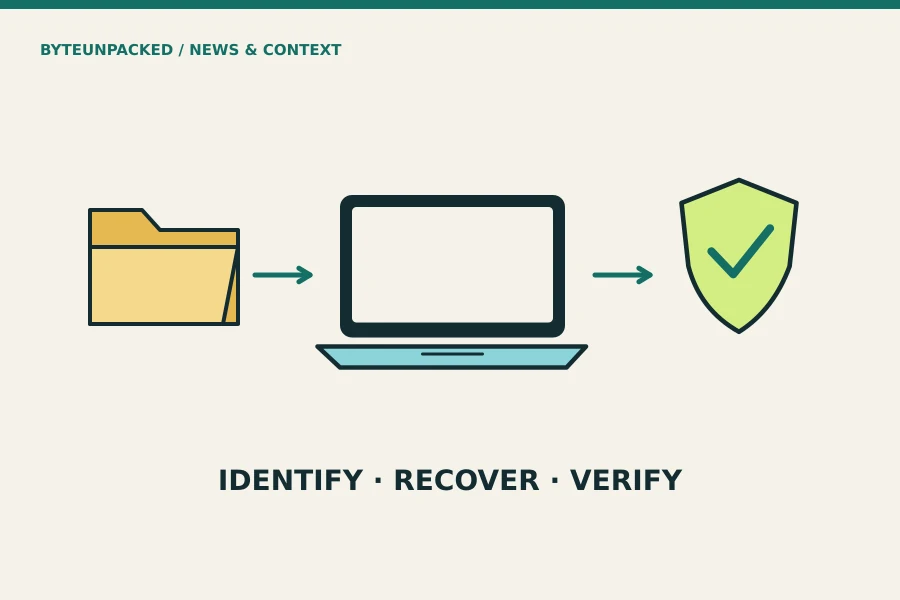
Record what the system reports after updating or reconnecting. A screenshot of those properties is more useful for troubleshooting than a router box promising a maximum aggregate speed. Keep hardware capability and the observed connection in separate notes.
Six gigahertz availability has conditions
Intel's support guidance says that using 6 GHz depends on operating-system and driver support, local regulations, and whether the system manufacturer enabled the band for that market. A Wi-Fi 6E or Wi-Fi 7 router is also required for its compatible adapters to access 6 GHz. A capable adapter does not override those other conditions.
For that reason, do not assume a missing 6 GHz connection means the hardware is broken. Check the documentation for your precise computer and router, their region, and their current software. Follow supported settings. Changing a country setting to one that does not describe your location is not a sound troubleshooting step. The useful question is which capabilities this particular combination is allowed and configured to use.
Test the result against your original task
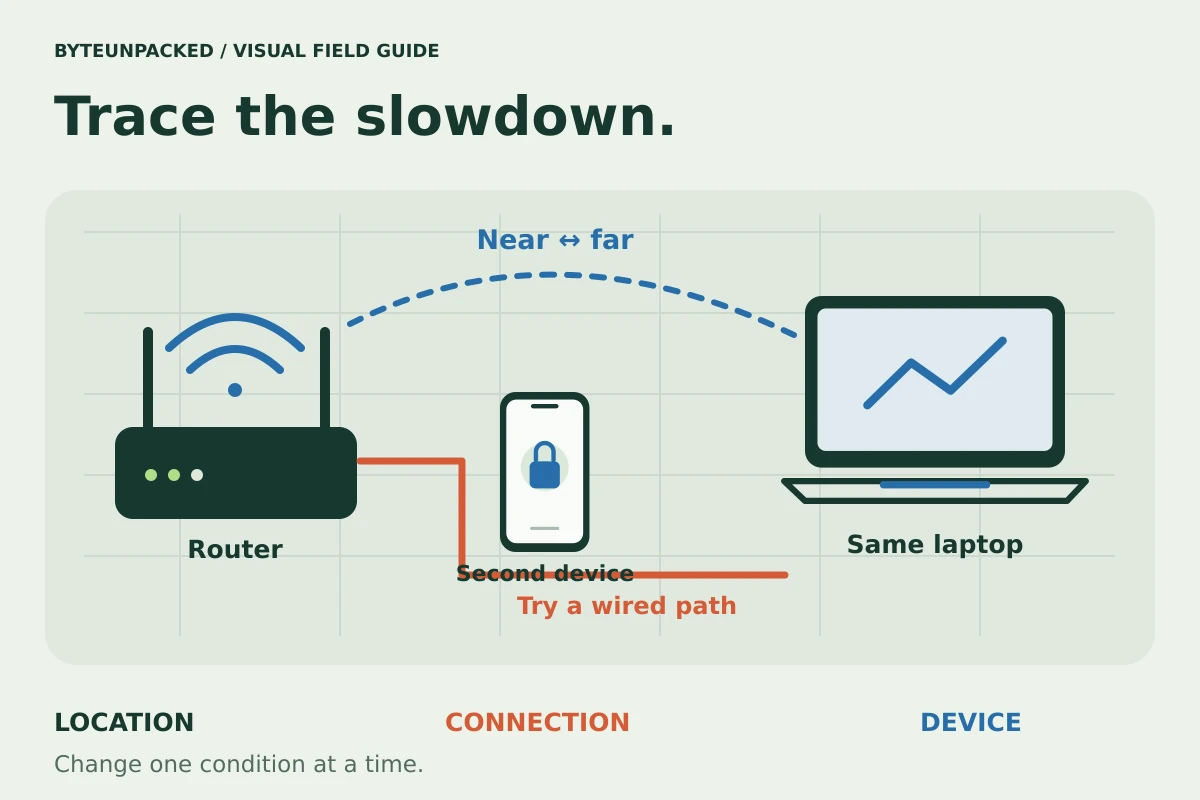
Once compatibility is established, repeat the task that prompted the investigation. Use the same device, location, and test service where possible. Compare nearby Wi-Fi with the usual room and, if available, a wired connection. Treat the pattern as a diagnostic clue. If all paths encounter the same internet limit, the wireless generation alone does not explain it.
Google warns that even a very capable router remains constrained by a slow upstream internet connection. For a local transfer, use a repeatable file and note the devices involved; that is a different workload from downloading from a website. Measure the benefit you actually need instead of converting a connection label into an expected download speed.
- Confirm the router and client adapter's exact specifications.
- Check operating-system version, driver support, and regional band availability.
- Inspect the active connection rather than relying only on advertised capability.
- Retest the same task and keep the internet path separate from the local wireless link.
Sources & further reading
This is a source-based explainer, prepared with AI assistance and checked against the references above. It is not a hands-on product test. Read our editorial approach.