In this article4 sections
Write down the status and the remaining count
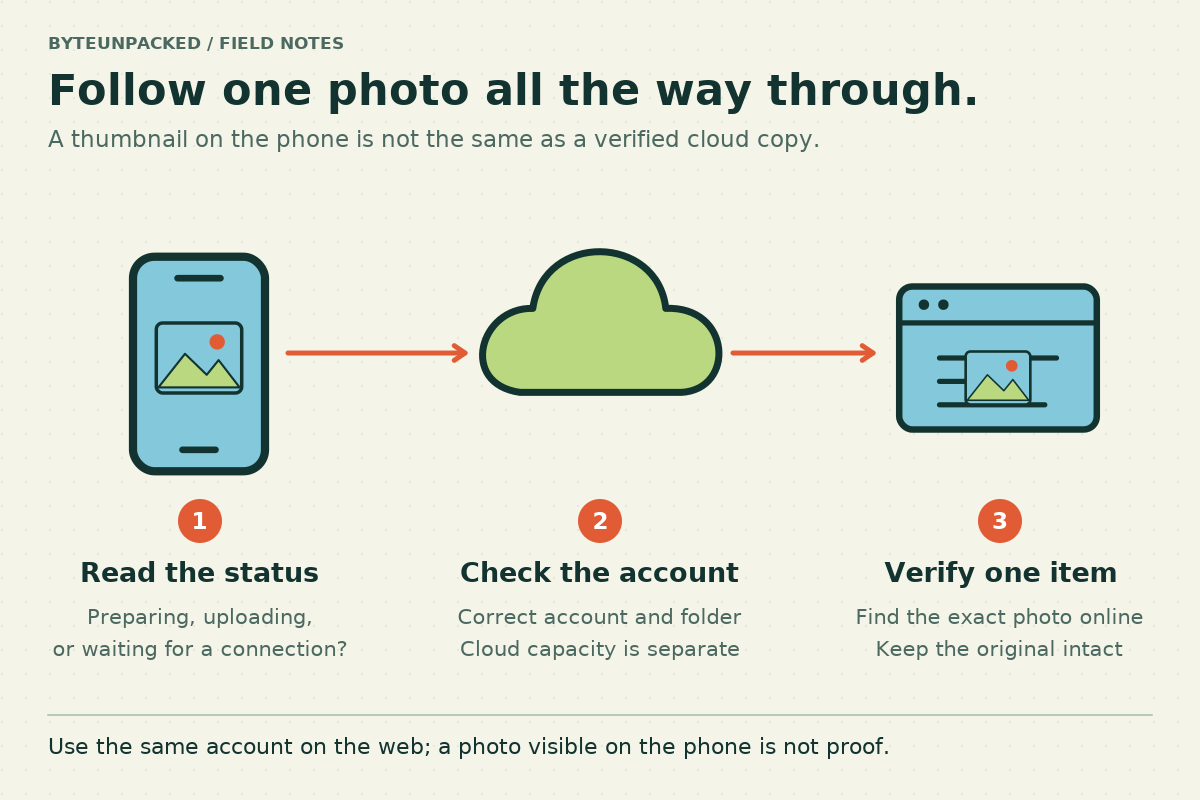
Open Google Photos on the Android device holding the originals and inspect the backup status. Google's troubleshooting guide distinguishes preparation, active uploading, a connection wait, and completion. If a remaining-item count appears, note it and check again after leaving the phone on a working connection. A moving count is more useful evidence than a thumbnail that seems unchanged.
A connection wait is a prompt to inspect the allowed network, while preparation describes work before uploading. Neither message alone identifies a damaged photo or a broken account. Our recommended comparison is simple: record the exact status, the remaining count if available, and whether ordinary internet access works on the same phone.
Do not delete an original to test whether its thumbnail is backed up. The app can display files stored on the phone alongside cloud content. A visible picture is therefore not the completion check. Keep the original in place until you have established where a recoverable copy exists.

Check the account and the folder being backed up
Tap your profile picture, then open Photos settings and Backup. Check the selected account against the email address you intend to use. Google Photos backs up to one Google Account at a time. Switching the account you view can make the situation confusing if you expect every picture on the phone to exist in each account.
If camera photos arrive but screenshots or pictures from another app do not, inspect Back up device folders. Google's troubleshooting documentation provides separate controls for those folders. Choose the folder you actually want uploaded rather than enabling every folder as a troubleshooting shortcut. You may not want downloaded images or messaging attachments included in the same backup.
Try to state the failure narrowly: 'New camera pictures upload, but this folder does not.' That observation points to a scope setting more clearly than 'Photos does not work.' If no selected folder uploads, continue to account capacity and connection checks before changing the contents of the library.
Separate account capacity from connection limits
In the Backup settings, open Manage storage and read the account's usage. Google's storage guide explains that an account at its limit cannot accept new Photos backups. Space remaining on the phone does not establish available space in the account. Check the displayed account address again if the quota seems inconsistent with what you expected.
If capacity is the problem, make a deliberate storage decision. Review what you need to retain and whether to add capacity or remove material you have chosen to discard. Do not empty trash or erase a large batch merely to see whether uploading resumes. A backup problem is a poor moment to make an irreversible decision about irreplaceable photographs.
If the account has room and the status names Wi-Fi or connectivity, check the backup network preferences. Mobile uploads are an option, but enabling them can use paid data; choose them only when that suits your plan. For a controlled first test, use a known working Wi-Fi connection and keep the phone available while you watch one upload.
Test one item and verify it away from the phone
Open one affected photo, tap More, then About, and look under Details for its backup status. Use Back up now for a controlled manual test if the item has not been backed up. Google's backup guide documents item-level status and manual backup. If a small ordinary photo uploads while a particular video remains stuck, compare that file's type and size with the requirements in the linked guide. That result suggests a narrower investigation; it does not prove every other item is safely stored.
If uploading progresses only while you are actively using Photos, review the phone's battery restrictions for that app. Google notes that battery optimization can interfere with backup and documents device-dependent controls. Change only the relevant app setting, understand the battery tradeoff, and then observe whether the same symptom changes.
Finally, open photos.google.com in a browser and select the intended account. Look for the exact test image and another recent item you care about. Google's troubleshooting guide identifies this web view as a way to see backed-up media. If the test still fails, send feedback with the status, account capacity, connection type, and affected file details; leave originals intact while the issue is unresolved.
- Capture the status and remaining count before changing anything.
- Confirm the backup account and selected device folder.
- Check cloud capacity and allowed connection separately.
- Verify a specific uploaded item in the correct web account.
Related guide: Why recovery matters more than seeing two copies.
Sources & further reading
This is a source-based guide, prepared with AI assistance and checked against the references above. It is not a hands-on product test. Read our editorial approach.