In this article4 sections
Describe the failed action before changing privacy settings
A page can load while one part of it fails: a video stays blank, a sign-in window never finishes, or a form stops responding. Start with that exact action. Record the page address, what you expected, and what appeared instead. 'Firefox cannot open this site' is much less useful when the main page actually works and only one embedded component is missing.
Mozilla explains that Enhanced Tracking Protection can sometimes interfere with websites and provides an exception for an individual site. Its documentation also warns that Strict protection can cause breakage on some sites. These statements establish a possible cause, not a diagnosis of every broken button. A website fault, an extension, or another difference in the browsing session may still be responsible.
Save any unfinished work before a comparison that reloads the page. For a payment or submission form, first establish whether the original action succeeded through the service's own confirmation or account history. Our advice is to avoid turning a technical test into a duplicate purchase or repeated submission. Use an earlier, harmless step in the same workflow when possible.

Make one temporary exception, then repeat the same test
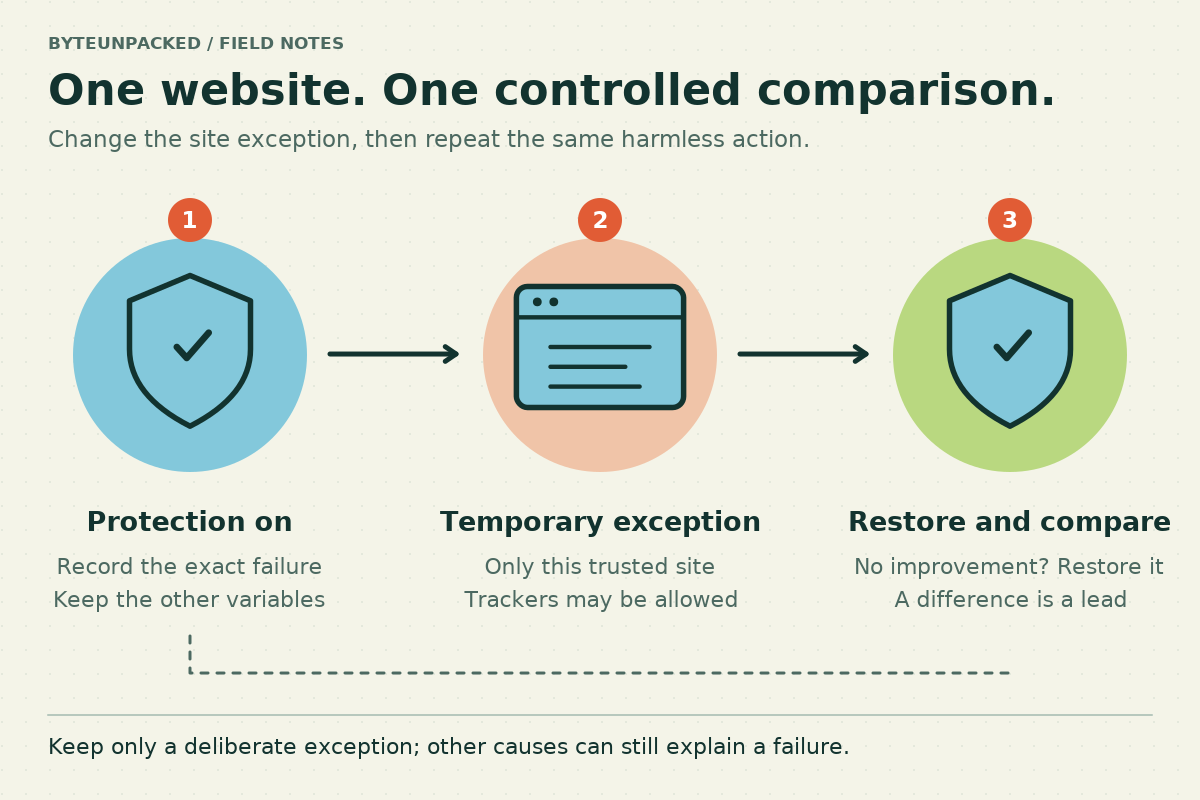
On the affected website, open the shield control beside Firefox's address bar. Mozilla's desktop instructions describe switching Enhanced Tracking Protection off for that site. Firefox adds the site to its exception list and reloads the page; protection continues on other sites. Follow the same process to switch it back on. Panel layout may vary, so use the control's label rather than a remembered screen position.
Understand the tradeoff before making that exception: Mozilla says it allows trackers on the affected site. Choose it only for a website you trust and a test you actually need. It is not a universal repair or a reason to weaken the browser's protection everywhere. Record the original state so that you can restore it when the comparison is finished.
Now repeat the precise action that failed, using the same page and account. Keep other variables steady: do not also disable extensions, clear stored data, and change network connections. If several things change together, a successful result cannot tell you which change mattered. One controlled comparison provides a clearer next step than a long list of simultaneous resets.
Interpret the result without blaming every blocked request
If the action works with the exception, turn protection back on and repeat a safe version of the test. A repeatable difference makes tracking protection a stronger lead. If the behavior stays unchanged, restore protection and investigate something else. These are practical diagnostic inferences; they do not identify the exact script, cookie, or service responsible for the failure.
Mozilla's engineering guidance makes the same distinction at a deeper level: a page can have several blocked third-party resources, and not every blocked domain causes breakage. Its investigators isolate the resources involved instead of assuming that every blocked request must be allowed. You do not need to reproduce their developer workflow or alter advanced preferences to apply that reasoning to a simple site test.
Consider an example: a page contains an advertisement and an embedded sign-in component. Seeing both in a list of blocked resources would not prove that the advertisement caused the sign-in failure. Your useful evidence is the behavior of the specific action with protection on and off. Leave the underlying technical diagnosis to the website or browser maintainers when the evidence stops there.
Keep the exception deliberate and the report useful
If you retain the exception to use a trusted service, treat it as a conscious privacy choice and revisit it after the site or browser changes. If it did not help, remove it immediately. An unsuccessful experiment should not leave a lasting permission behind. Our preferred outcome is either a small, understood exception or a clear indication that another cause needs investigation.
When contacting the website's support team, include the Firefox version, the failing action, the relevant page, and whether changing the site's protection altered the outcome. Remove personal information from screenshots and avoid sharing private account links. Describe what you observed rather than claiming that Firefox or the website is definitely defective. That gives the recipient a test they can attempt to reproduce.
- Test a specific failed action on a trusted site.
- Change only that site's protection for the comparison.
- Restore protection if the exception does not help.
- Report the observed difference and review any exception you keep.
Related guide: review browser extensions as a separate investigation.
Sources & further reading
This is a source-based guide, prepared with AI assistance and checked against the references above. It is not a hands-on product test. Read our editorial approach.