In this article5 sections
Decide the drive’s job before changing anything
Formatting a drive erases its files. Before choosing a format or opening an erase dialog, copy anything you need to a separate location and verify that representative files open there. Apple explicitly warns about this data loss in its Disk Utility instructions. A format change is not a harmless preference adjustment, even when the drive appears empty at first glance.
Write one sentence describing the intended job: transferring documents between Windows and Mac, storing a Windows working collection, or serving a Mac application. List every device that must read and write the drive. Include cameras, televisions, consoles, or other equipment if relevant; compatibility with two computers does not establish compatibility with everything that has a USB port.
Our suggested starting question is whether you need to reformat at all. If the drive already supports the intended workflow, a different format may add work without solving a problem. For a backup destination, first read the backup application’s requirements. Choose a format that supports that application rather than applying a general file-transfer recommendation.

Consider exFAT for a shared transfer drive
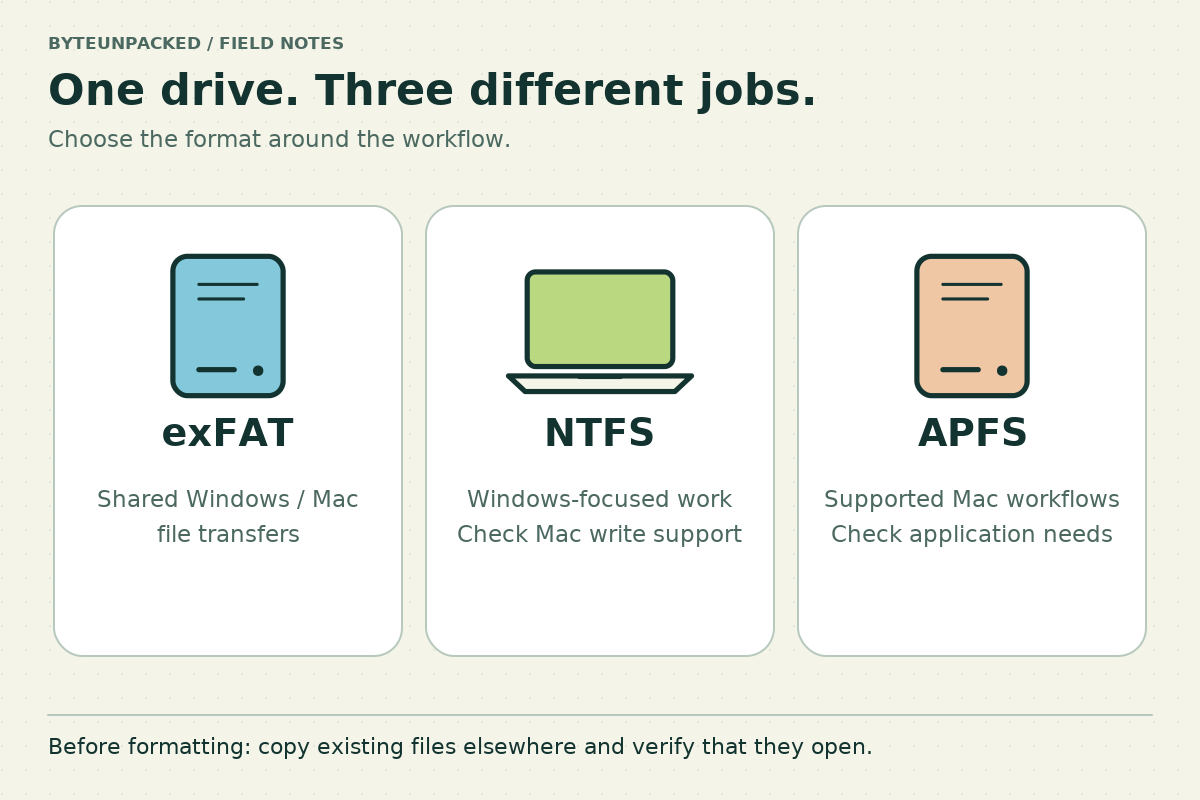
Apple documents exFAT as a Windows-compatible format available through Disk Utility. It is a practical candidate when the same external drive must carry ordinary files between Windows and Mac. Confirm that any additional device supports it before proceeding. A television or camera may have its own requirements for the format, partition layout, or media files it can use.
Microsoft’s file-system comparison shows that exFAT supports files larger than FAT32’s approximately four-gibibyte single-file limit. That distinction matters for a large video or archive even when the drive has plenty of free space. Available capacity and the maximum size of one file are separate limits; deleting unrelated files will not overcome a file-system limit.
The same Microsoft comparison shows that exFAT does not provide NTFS-style access control lists or metadata journaling. Do not assume a shared exFAT drive preserves the same permission model as a Windows working disk. Our recommendation is to treat compatibility as a deliberate tradeoff and keep another copy of valuable material, regardless of the format selected.
Consider NTFS for a Windows-focused workflow
NTFS supports features including access control lists and metadata journaling, according to Microsoft. Those capabilities can matter for a drive used primarily with Windows or by software that expects Windows file-system features. Journaling is not a substitute for a backup, and selecting NTFS alone does not establish that an effective backup process exists.
Apple says a Mac may be able to read an NTFS drive but not write to it. A drive that opens successfully on both computers therefore has not passed a two-way transfer test. Additional software can change support, but do not assume it is installed, compatible, or available on every Mac that may need the drive.
If a Mac cannot save to an external drive, inspect its existing format before deciding to erase it. In Finder, select the drive and choose File, Get Info to find that information. Apple also identifies other possible causes, including insufficient free space, permissions, and disk errors. A failed write is a symptom to investigate, not automatic proof that the format must change.
Consider APFS for supported Mac uses
Apple describes APFS as the file system used by macOS 10.13 and later. It is optimized for flash and SSD storage but also supports hard drives and directly attached external storage. Disk Utility offers variants, including encrypted APFS. Select the variant deliberately if encryption is part of the requirement, and plan how you will retain access to its password.
APFS is a candidate for a Mac-focused drive when the application and computers involved support it. Check the exact workflow rather than choosing it solely because it is newer. Our suggested compatibility test includes the oldest computer you still need, the intended application, and whether you expect to hand the drive to someone using another operating system.
Verify the choice before moving your only copy
Before an erase operation, match the selected drive’s name and capacity to the physical device. Disconnect unrelated removable drives if that makes the choice clearer. Recheck the separate copy of existing files. After formatting, copy a few nonessential examples to the drive, open them on every intended computer, and test writing back in the other direction where needed.
- Confirm the intended devices and any backup application’s format requirements.
- Copy and verify existing files before formatting; formatting erases them.
- Test the largest file type you expect to use, not only a small document.
- Keep an independent backup after the compatibility test succeeds.
Sources & further reading
This is a source-based guide, prepared with AI assistance and checked against the references above. It is not a hands-on product test. Read our editorial approach.