In this article5 sections
Describe the rule before requesting the formula
Start with a sentence precise enough for someone else to calculate by hand. For example: apply a ten-percent discount when an order subtotal is at least 100; otherwise keep the original subtotal. Say whether the threshold includes 100, whether refunds can be negative, and what an empty subtotal should produce. These decisions belong to your task, not to the formula generator.
Tell the AI which spreadsheet application you use, the relevant column headings, and where the result will go. Use invented sample rows when the real workbook contains information you do not need to share. Ask it to explain the proposed formula's assumptions, including its treatment of missing values. Treat that explanation as something to check against the formula.

Make a test table with known answers
Create a separate sheet with input, expected result, actual result, and a pass-or-review column. Enter the expected results before running the proposed formula. That gives you a reference independent of the AI's answer. A handful of carefully chosen rows can expose a mistake that hundreds of ordinary rows would miss.
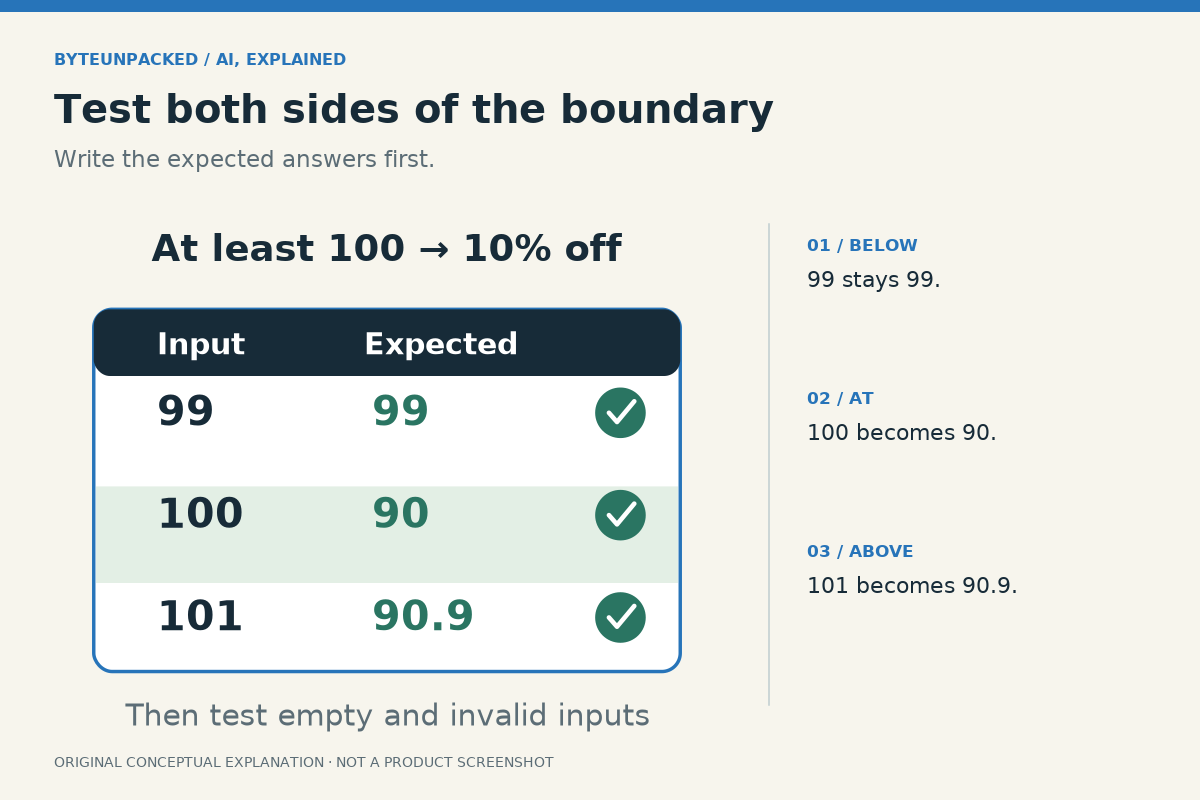
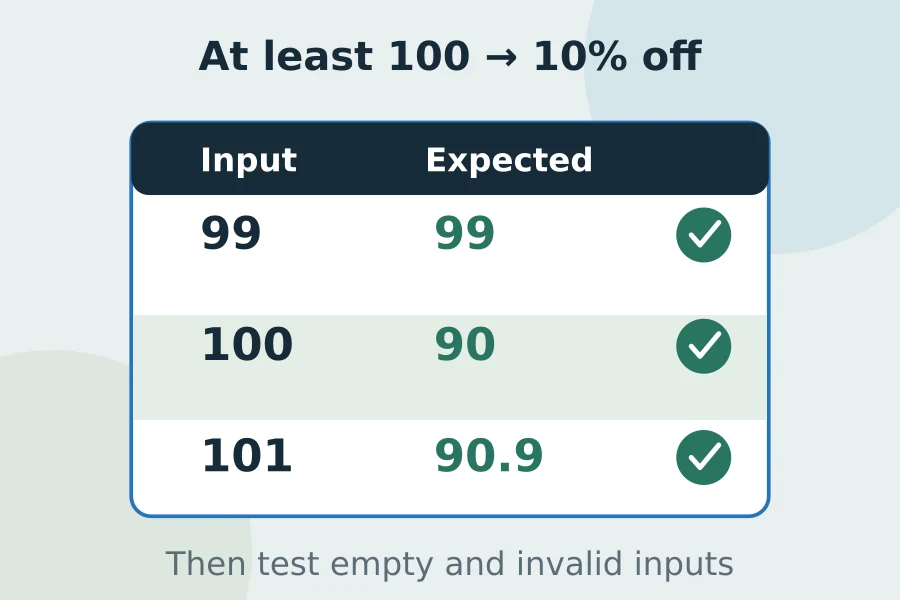
For the discount example, 99 should remain 99, 100 should become 90, and 101 should become 90.9. Those three rows check both sides of the boundary and the boundary itself. Add zero, an empty cell, and a number stored as text. Decide the intended result for each rather than accepting whatever Excel displays.
- For lookups, test a missing key and a duplicate key; decide whether duplicates are valid.
- For dates, test a month boundary and an unambiguous date that your sheet stores as a date value.
- For division, include a zero denominator and decide whether the result should be flagged for review.
- For totals, add a new row and check that the calculation includes the intended range.
Change one assumption at a time
When a test fails, write down the input, expected answer, and actual answer before asking for a correction. For example, say that a subtotal of exactly 100 received no discount even though the rule includes the boundary. That is a more useful repair request than saying the spreadsheet is wrong. Ask which part of the formula changed, then run the full test table again.
Separate rounding from the discount rule. If the result represents an amount displayed to two decimal places, decide whether the calculation itself must round and at which stage. Try a value that produces extra decimal places, then compare the row result and the final total with your intended method. A display rounded to two places can otherwise make a discrepancy difficult to spot.
Keep the input cases that revealed each failure. They become a small repeatable check for the next formula revision, including a revision that appears to improve an unrelated part of the calculation.
Inspect references and visible errors
Microsoft distinguishes relative, absolute, and mixed cell references because they behave differently when copied. If every row should use a rate stored in one fixed cell, confirm that the rate reference stays fixed. Copy the candidate formula a few rows down and, if relevant, across. Inspect the resulting references rather than judging only the first answer.
In Excel for Windows, Evaluate Formula can help you step through a calculation. Error checking can also flag suspicious patterns, but Microsoft explicitly says these checks do not guarantee an error-free worksheet. A valid calculation using the wrong business rule can still return a plausible number.
Keep failures visible until you understand them
Be cautious when an AI fixes a problem by wrapping everything in IFERROR. Microsoft documents that this function replaces an error with a value you choose. Returning zero or an empty string may make the sheet look cleaner while concealing a broken reference, missing lookup, or invalid input. During testing, use an obvious review message and investigate it.
Once the small test passes, try the formula on a copy of a representative part of the workbook. Check individual rows and a total you can independently reconcile. Keep the test sheet with a short note describing the rule and its exceptions. When column layouts or requirements change, rerun those cases before trusting the filled column.
Sources & further reading
This is a source-based explainer, prepared with AI assistance and checked against the references above. It is not a hands-on product test. Read our editorial approach.